

Getting Started
A first session in Kav2D: find the tools, draw a rectangle, transform it, and export SVG or DXF.
The interface
From top to bottom you will see:
- The menu bar: File, Edit, Object, Path, Align, Tools, View, Help, plus the document name field and the Kav2D logo.
- The toolbar on the left: drawing tools, Box Generator, Gear Generator, Trace Image, Image to Laser, Line colour, and palettes for Group, Align, Distribute, Mirror and Boolean.
- The canvas in the middle, with optional rulers and grid.
- The inspector on the right: size, position, stroke, fill and object actions. An advertisement slot sits under it on the public site.
- The status bar along the bottom, with zoom controls.
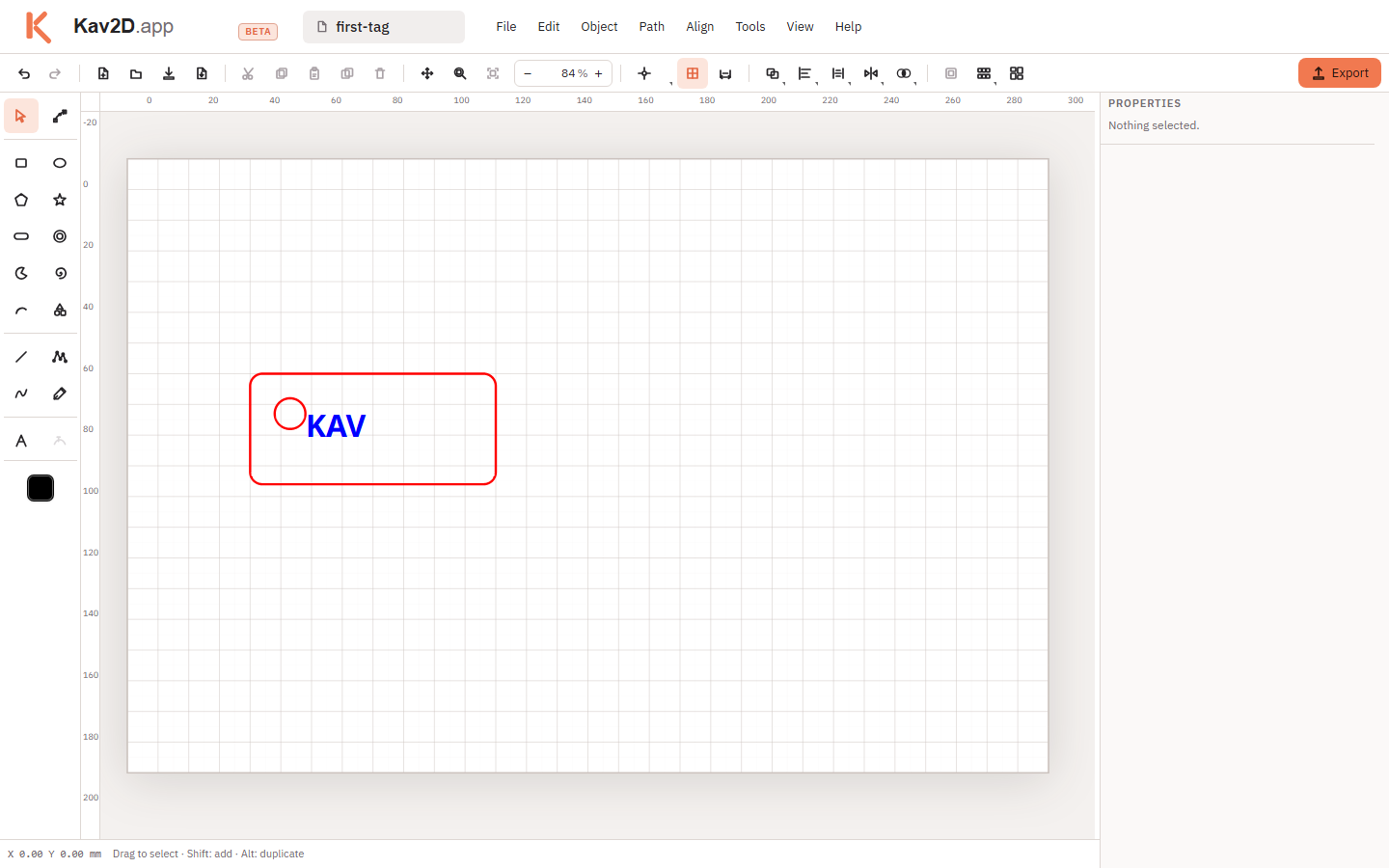
Create a document and name it
- Choose File → New (or Ctrl+N / ⌘+N). If the current drawing has unsaved work, Kav2D asks Discard unsaved changes? This cannot be undone.
- Click the name field in the menu bar (it starts as untitled) and type a title such as first-tag. The browser tab title follows the document name.

Units and page size
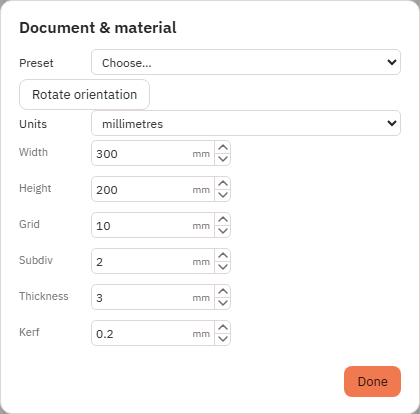
- Open File → Document & material….
- Choose a Preset (for example 300 × 200 mm or A4), or type Width and Height.
- Set Units to millimetres, centimetres, inches or pixels (96 dpi).
- Optional: set material Thickness and Kerf for later export compensation.
- Click Done.
Draw a basic shape
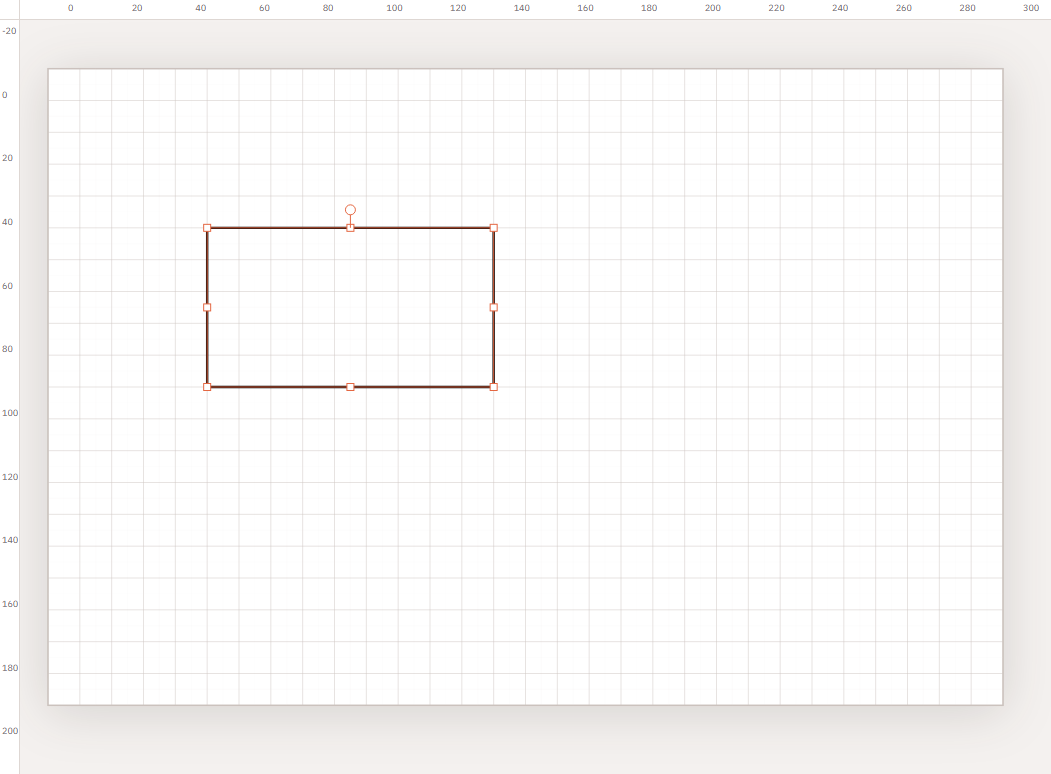
- Click Rectangle in the left toolbar (or press R).
- Drag on the page to place the rectangle. Release to finish.
- Press Esc or click Select (V) when you want to stop drawing.
Other first shapes: Ellipse / Slot (corner-mark tool, E for ellipse), Polygon, Star / Ring / Spiral, Arc / Pie, and Text (T). Click a tool with the corner mark to open its menu.
Select, move, scale and rotate
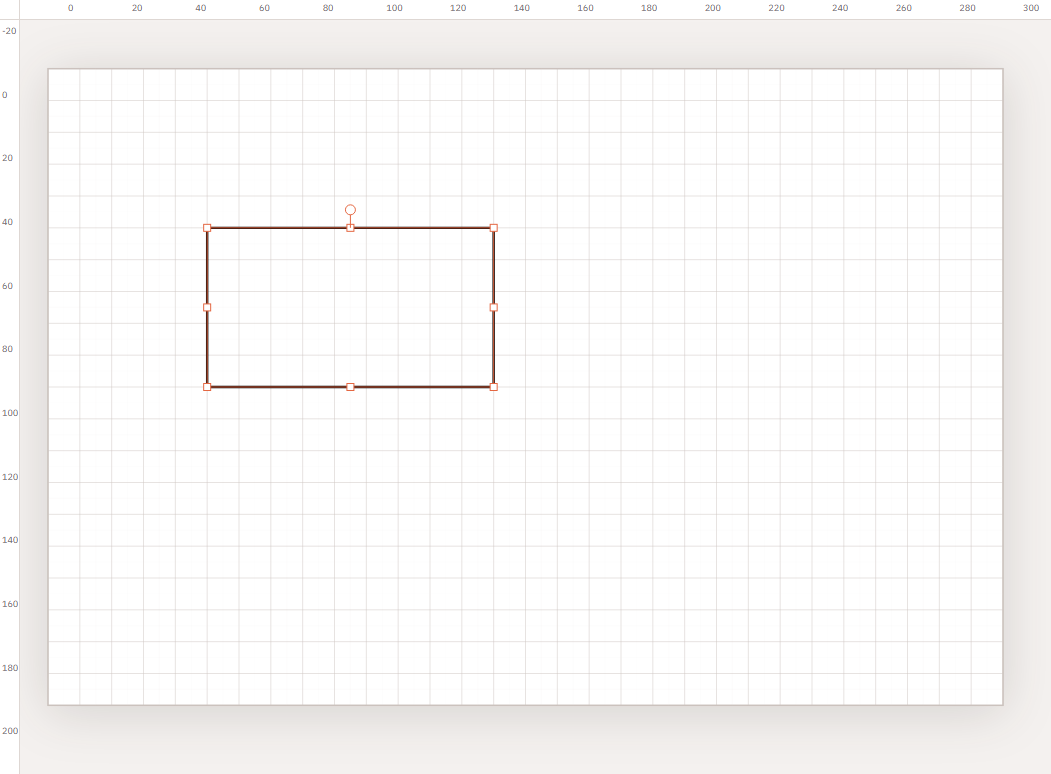
- Switch to Select and click the object. A bounding box and handles appear.
- Drag the interior to move. Hold Shift after you start dragging to constrain if snapping allows.
- Drag a corner or side handle to scale.
- Use the rotation handle above the box to rotate.
- Exact values live in the inspector: position, size, rotation and corner radius for rectangles.
Change line colour
- Select the object.
- Open Line colour on the left toolbar (or the inspector Line colour field).
- Pick a named swatch such as Black, Red or Blue. These names are not assigned a cut or engrave meaning inside Kav2D.
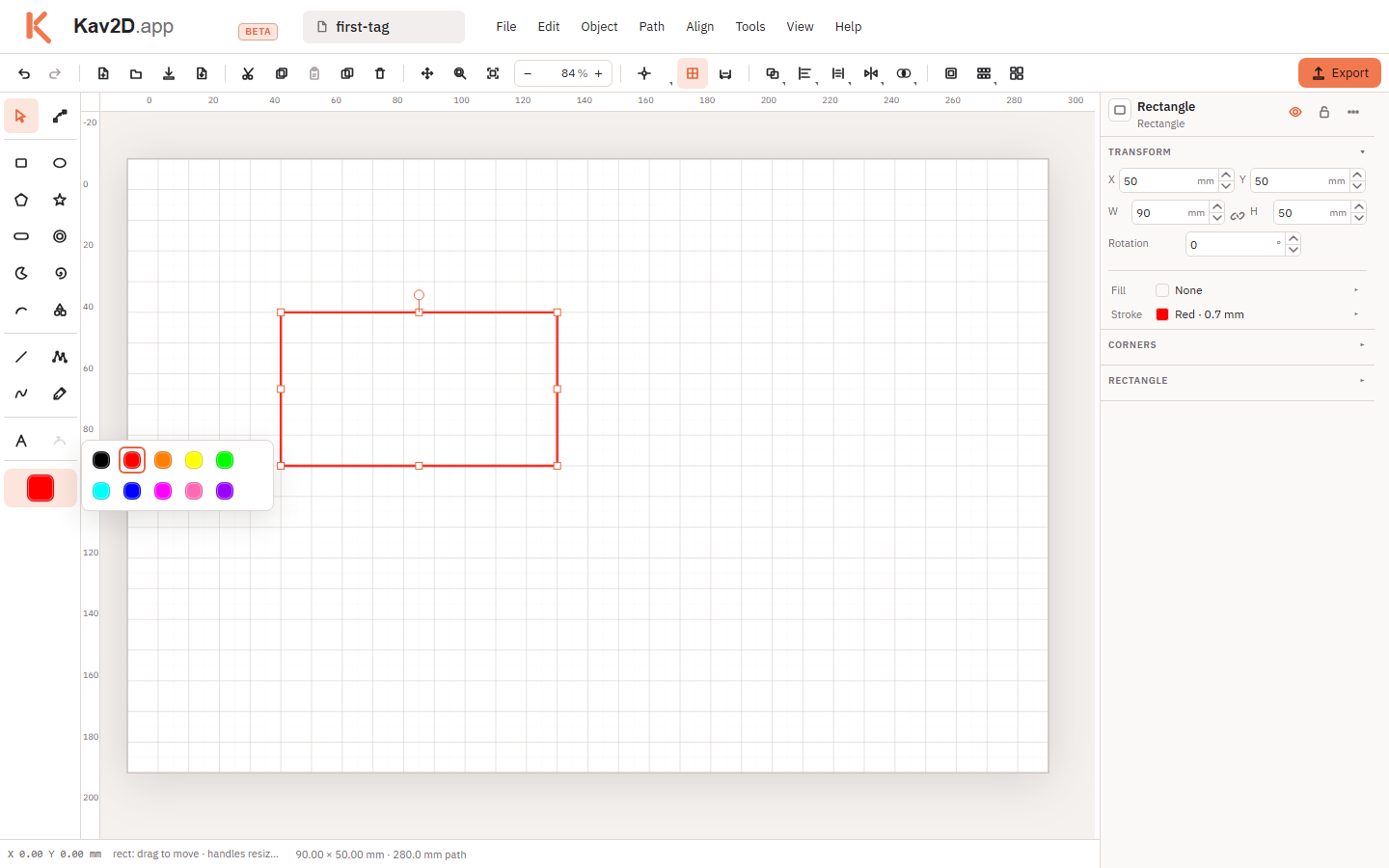
Duplicate and copy/paste
- Edit → Duplicate (Ctrl+D) copies the selection on the page.
- Copy / Paste / Paste in place use the Kav2D clipboard (not always the system clipboard).
Undo and redo
Edit → Undo (Ctrl+Z) and Redo (Ctrl+Shift+Z). Boolean mistakes are easier to reverse than to reconstruct — undo immediately if the outline is wrong.
Zoom and pan
- View → Zoom to page (Ctrl+0), Zoom to drawing, Zoom to selection.
- Use + / − and the percent field in the status bar.
- Hold space or choose the pan behaviour to slide the view without moving objects.
- View → Toggle grid and Toggle snapping help with measured drawing.

Save, load and import
- File → Download project (Ctrl+S) writes a Kav2D project file you can keep.
- File → Open… reloads a project.
- Import SVG… and Import DXF… bring geometry into the current or a new document, with a scale step if units need mapping.
Export SVG or DXF
- Choose File → Export… or the orange Export button (Ctrl+E).
- Pick SVG or DXF.
- Choose This sheet, All sheets (one file per sheet, named Name_1.svg …), or Selection.
- For laser work, keep Convert text to outlines on. Optional: Remove fills and Apply kerf.
- Click Download SVG or switch to DXF and download from there.
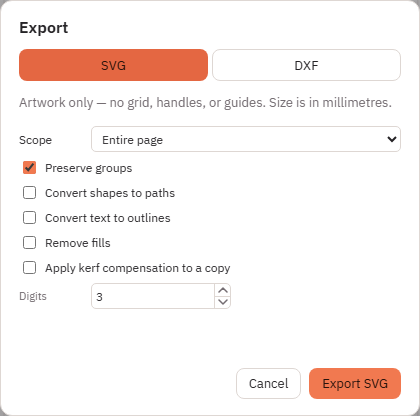
What to learn next
Trace a photograph by hand with Tracing with a Reference Image, or convert it automatically with Trace Image, or dither a photo for engraving with Image to Laser. Bring in a file with SVG and DXF Import/Export, combine shapes in Boolean Operations, build a box with Box Generator, pack parts with Optimize Layout, then follow Preparing Files for Laser Cutting.