

Creating Finger-Joint Boxes in KAV2D
Box Generator builds a laser-cut finger-joint box as ordinary vector panels. You set inside or outside size, material thickness, kerf and fit, preview the 3D assembly, then insert the flat parts onto the page. Hover a control in the generator for the same explanation as this guide.
Built with Box Generator
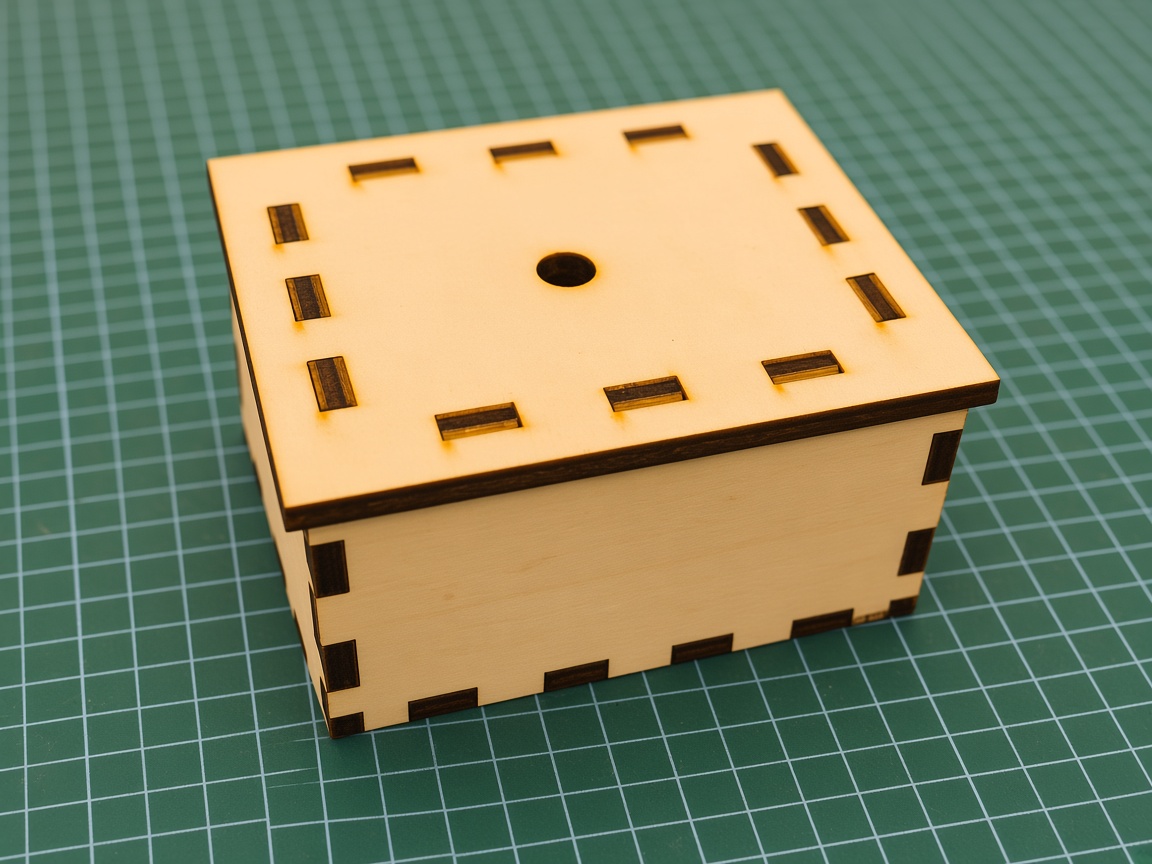
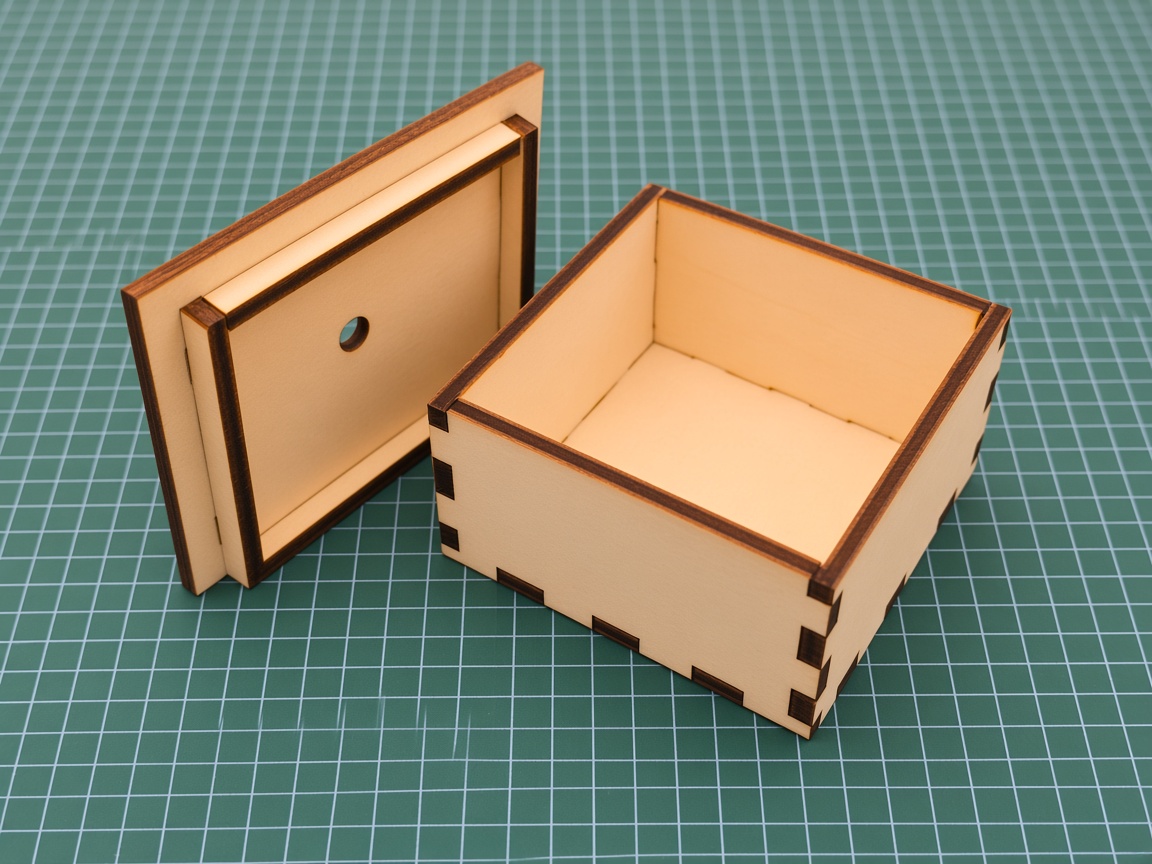
A real finger-joint box cut and assembled from panels generated in Kav2D — light plywood, laser-charred edges, and a removable lid with a finger hole.
Open the generator
Click the box icon on the left toolbar (under Text), or choose Tools → Box Generator…. The dialog title is Box Generator.
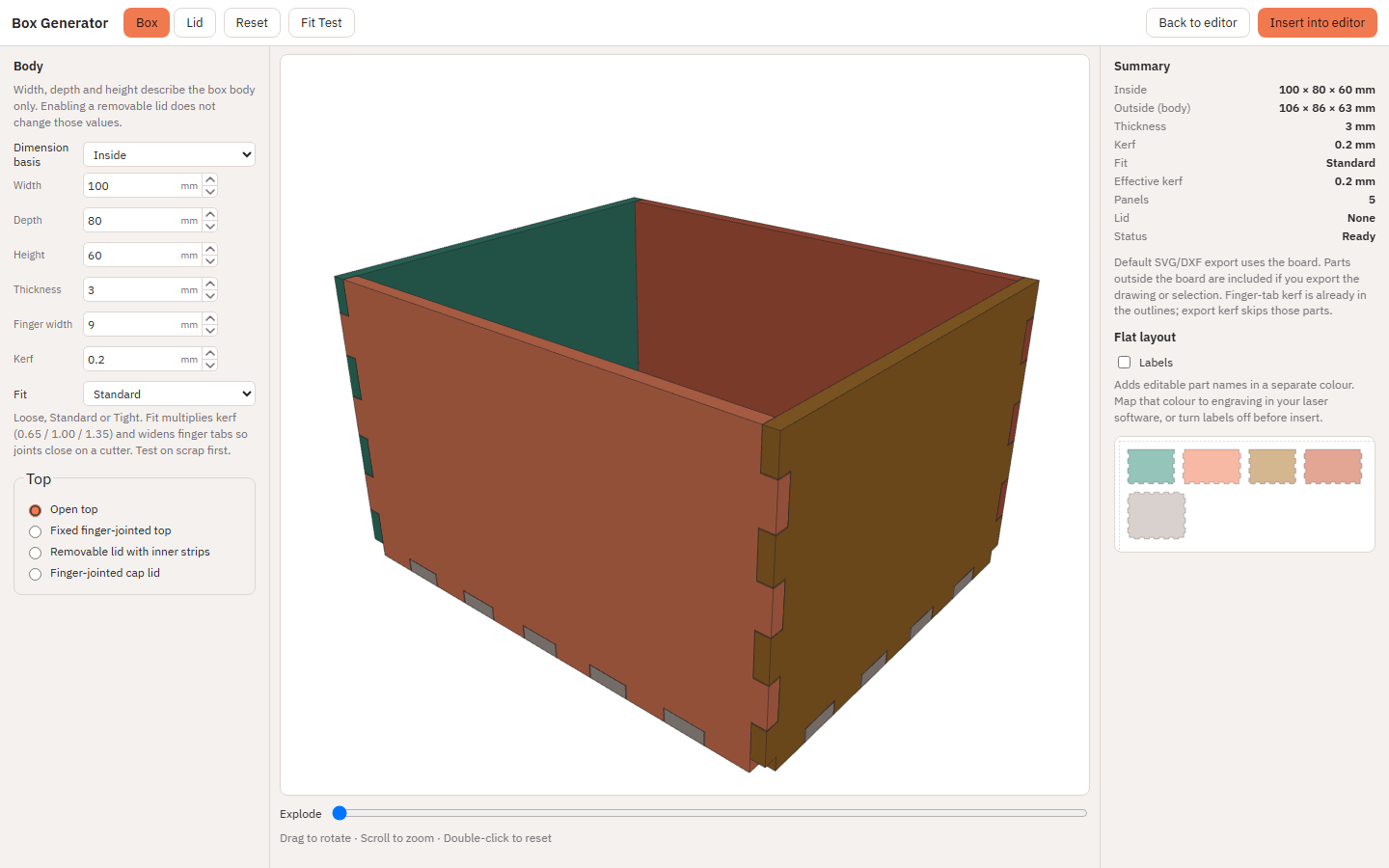
Body, thickness, fingers, kerf and fit
- Dimension basis — Inside uses the cavity size. Outside uses the outer envelope of the body. Width, depth and height never include lid overhang.
- Width — Body width in the selected dimension basis. Enabling a removable lid does not change this value.
- Depth — Body depth in the selected dimension basis. Enabling a removable lid does not change this value.
- Height — Body height in the selected dimension basis. Enabling a removable lid does not change this value.
- Thickness — Material thickness used for joints and finger depth.
- Finger width — Target length of each finger along an edge.
- Kerf — Calibrated laser kerf for this box, from 0 to 0.5 mm. Fit multiplies that value. 0.5 mm is a Box Generator limit, not a universal cutting limit. Use the same value as Document & material… when it falls in that range.
- Fit — Loose, Standard or Tight. Fit multiplies kerf (0.65 / 1.00 / 1.35) and widens finger tabs so joints close on a cutter. Test on scrap first.
- Effective kerf (summary) — Entered kerf multiplied by the Fit preset. Used only to widen finger tabs, not as a full contour offset.
The summary also shows inside size, outside envelope of the body, panel count and whether the layout still fits the current board. With a cap lid it also lists the lid outside size separately from body height and the assembled height with the lid fitted.
Open top, fixed top, or lids
Under Top:
- Open top — Five body panels: front, back, left, right and bottom.
- Fixed finger-jointed top — Adds a sixth panel that fingers into the walls.
- Removable lid with inner strips — A top plate plus four inner locating strips. Three tabs on each strip enter matching through-slots in the plate. Glue the strips under the plate so they drop into the opening. Not compatible with a fixed top.
- Finger-jointed cap lid — A shallow finger-jointed lid that fits over the outside of the box.
The Lid tab for inner strips:
- Enable removable lid — Turns on the lift-off lid. Not compatible with a fixed finger-jointed top.
- Overhang — How far the lid plate extends past the outside of the body on each side.
- Inner lip height — Height of the four locating strips glued under the lid plate. Must be at least the material thickness and not taller than the inside height.
- Lid clearance — Extra gap between the locating strips and the inside opening so the lid lifts off.
The Lid tab for a cap lid (outside footprint comes from body size, clearance and thickness):
- Lid height — Total outside height of the assembled lid, including the top panel thickness.
- Clearance per side — Gap on each side between the box and lid. Test the fit on your material. Fit does not change this gap.
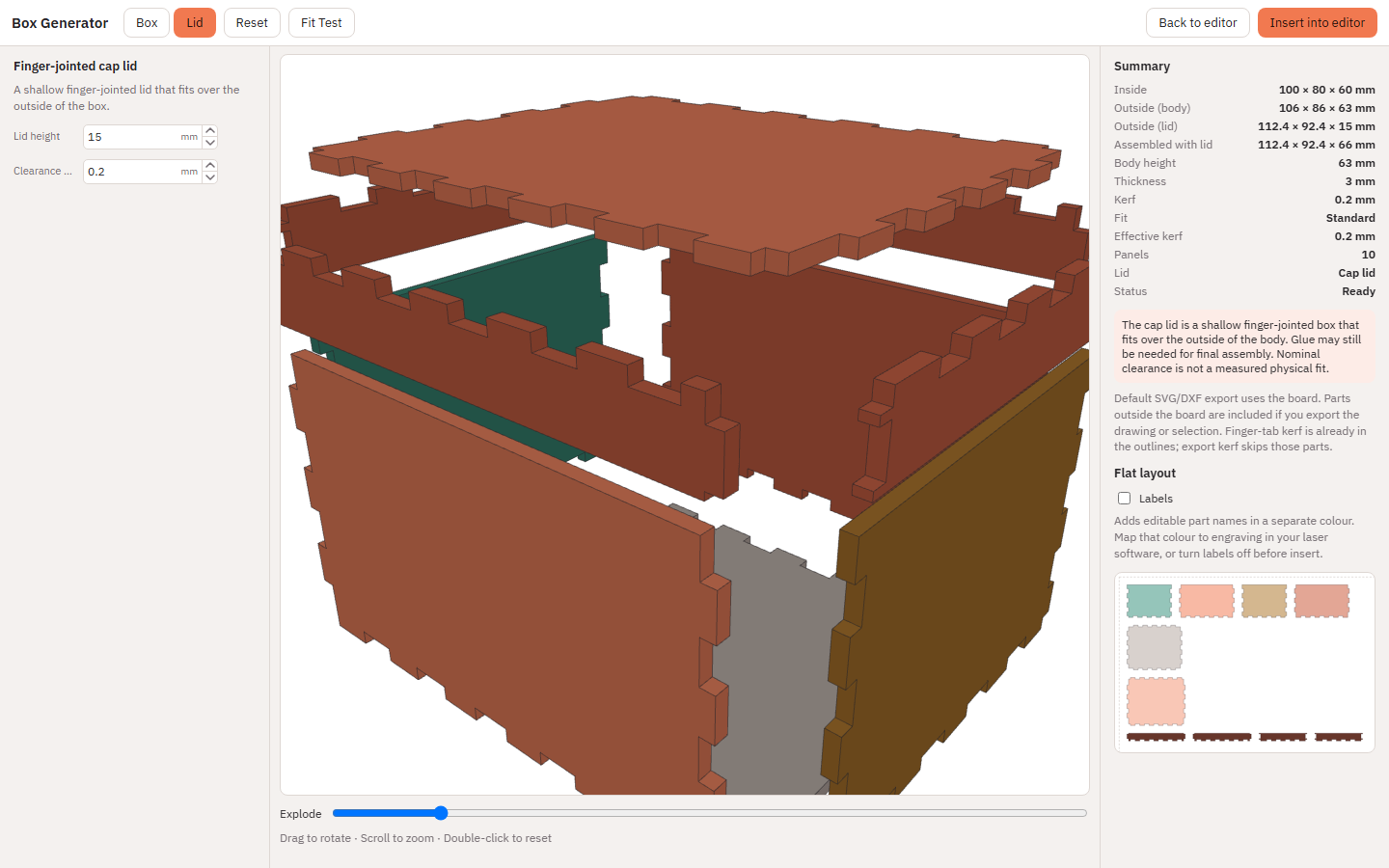
A Finger-jointed cap lid is a shallow five-panel box (Lid Top, Lid Front, Lid Back, Lid Left, Lid Right) that slips over the outside of an open body. The body keeps straight upper wall edges. Set Lid height (total outside height of the lid, including the top panel) and Clearance per side. Fit tightens the lid’s finger joints only; it does not change that clearance. Together with the five body panels this is ten parts. Glue may still be needed for final assembly.
3D preview, explode and labels
Drag to rotate, scroll to zoom, double-click to reset. Explode — Separates the panels in the 3D preview so you can see each face. Preview colours are for reading the assembly, not cut layers.
Labels — Adds editable part names in a separate colour. Map that colour to engraving in your laser software, or turn labels off before insert.
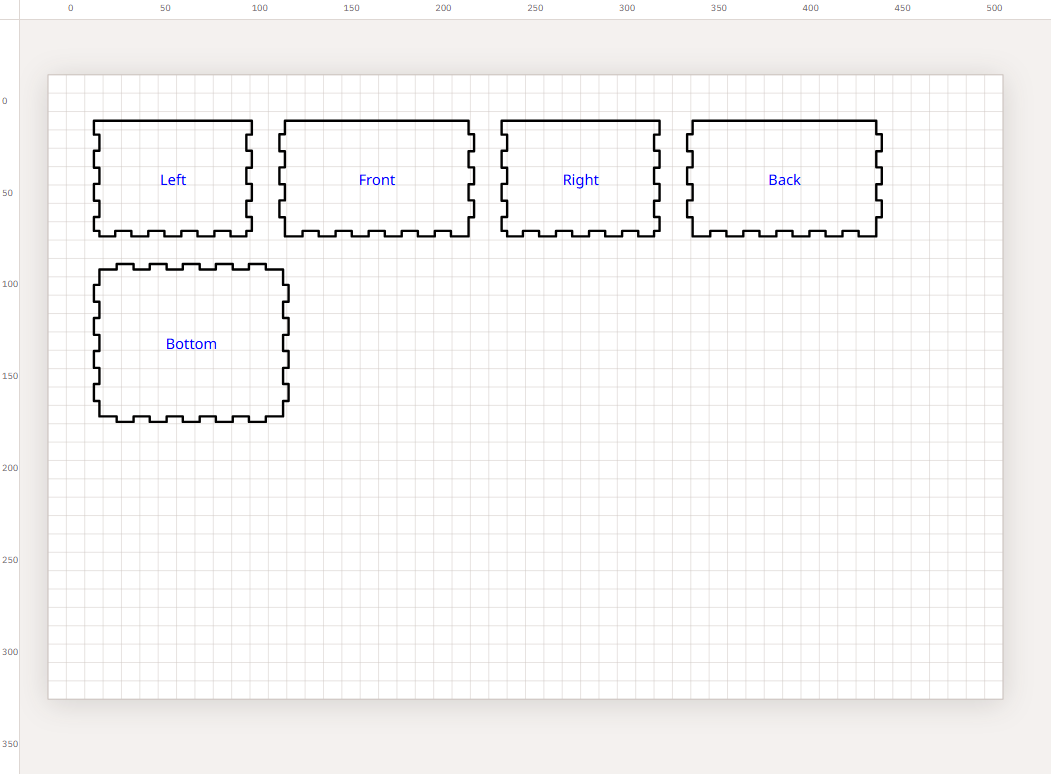
Insert into the editor
- Insert into editor — Nests the panels on the current board (90° turns, 2 mm gap), then places them as ordinary paths. History name: Insert box. You can recolour strokes, move parts, and run Optimize Layout to pack them on the board.
- Back to editor — Closes without inserting.
- Reset — Restores default dimensions for the current material thickness and kerf.
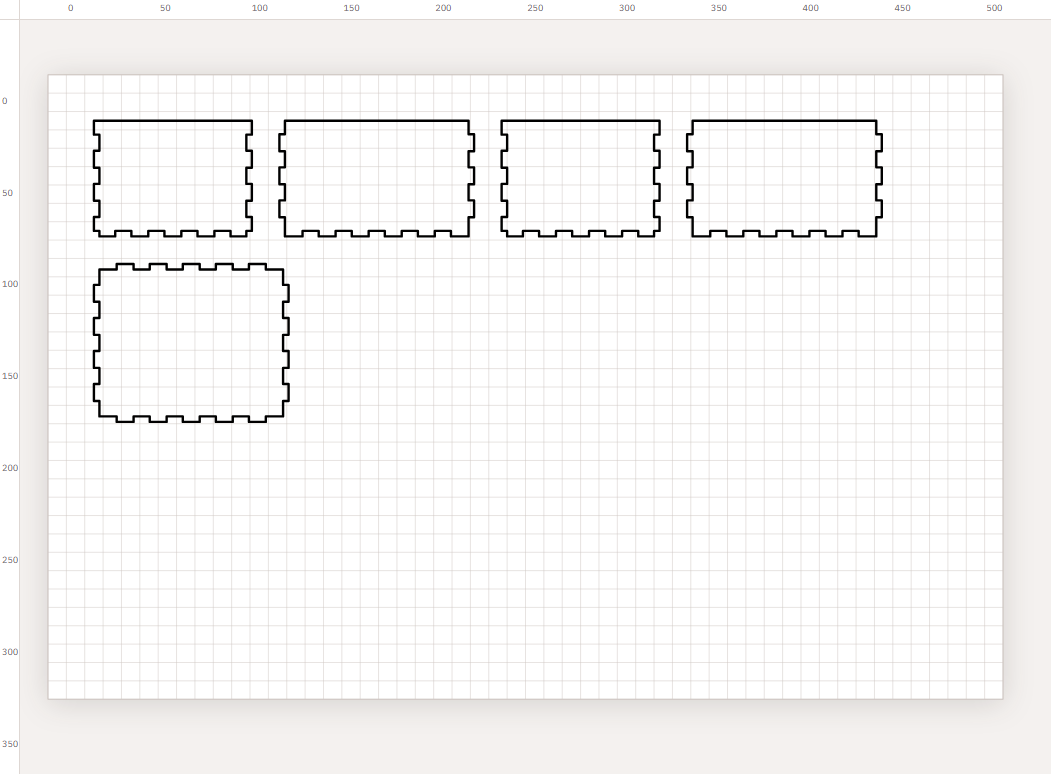
Export and kerf
Finger-tab kerf is already in the outlines. When you export, leave Apply kerf compensation to a copy off for those parts, or Kav2D skips them while the outline still matches the generator. Mixed drawings offset only ordinary objects.
Default SVG/DXF export uses the board. Parts that spill outside the board are included if you export drawing bounds or the selection.
Fit Test
Fit Test — Insert matching-joint coupons for Loose, Standard and Tight. Each coupon is labelled with the Fit name and kerf (entered→effective). Labels are always included. History name: Insert fit test. Use it to pick a Fit preset for that material and machine. The Labels checkbox does not apply: Fit Test always inserts grouped engraving names that include the kerf.
Joint construction is adapted from CutCase (MIT). Kav2D does not include CutCase dividers or extra panel features.