
Tracing with a Reference Image
Place a photo on the board, draw over it, then export only the vectors. The picture is a tracing aid: it is saved with the project, but it is not part of the cutting design.
Why use a reference image
You often have a photo, a scan, or a printout of something that must become a cut or engrave path: an animal head, a logo, a wooden toy silhouette, a name plaque. Kav2D is a vector editor. The laser follows strokes you draw, not pixels in a photograph.
A reference image sits under your drawing so you can trace. One image per project. It is never a drawing object: it does not snap, nest, Boolean, or appear in SVG or DXF. Hide it, fade it, or scale it to a real-world size, then work with Spline, Polyline and the other tools as usual.
Add an image
Use any of these:
- The toolbar button Add Reference Image (next to Import).
- File → Add Reference Image…
- Replace image… in the inspector ⋮ menu or the image context menu, after an image is already on the board.
Choose a PNG, JPEG, WebP, AVIF or GIF. SVG is not a reference image — import SVG as cutting geometry instead. The file is stored inside the project, so you can close the tab and open the file later without the original photo on disk.
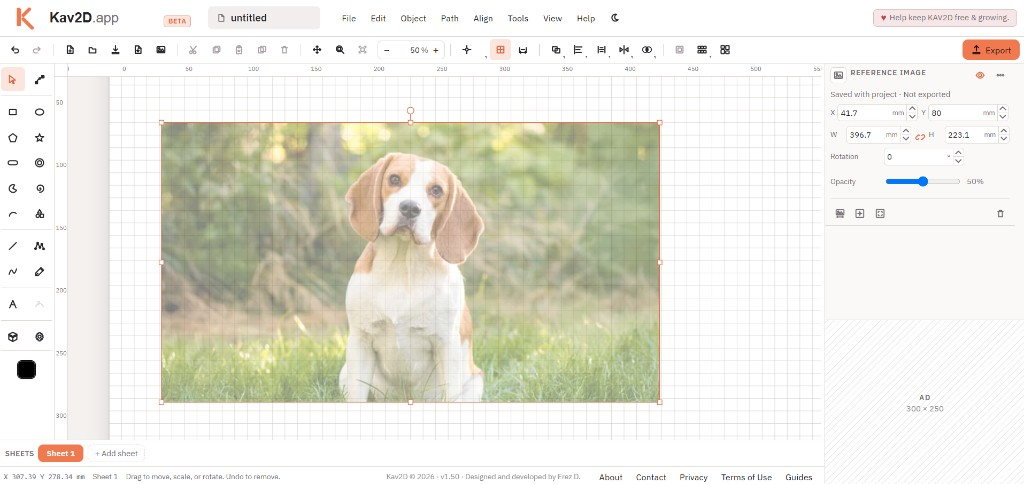
Kav2D places the picture immediately, fitted to the board, at 50% opacity, and selects it. Undo removes the place in one step.
Move, scale and rotate
With Select, click empty photo (not a shape on top of it). Orange handles appear. Drag the picture to move it. Corner and edge handles scale it. The lock between W and H keeps pixel aspect unless you unlock it. The handle above the top edge rotates about the centre.
The inspector shows the same numbers: X, Y, W, H, Rotation, and Opacity. The eye icon hides the picture without deleting it. Properties follow the current selection: click a drawn shape and the inspector shows that object, not the photo.
Scale from a known length
If you know a real measurement in the picture — a ruler in the photo, the width of a collar, 80 mm between two marks — do not guess the W field.
- Select the image. Click Scale from known length in the inspector toolbar, or the same command in the right-click menu.
- Click two points on that known span. Shift keeps the line axis-aligned. Esc cancels.
- Type the real length (project units, usually millimetres) and press Enter or Apply.
The picture scales uniformly about the midpoint of the span so the measured feature stays put. Undo reverses the scale in one step. Click again on the canvas to re-pick the two points if you missed.
Draw over the picture
Switch to a drawing tool such as Spline or Polyline. The photo no longer steals the mouse: the cursor is a crosshair, and clicks add path points. Zoom in, lower opacity, and trace the outline. Closed paths are better for a cut silhouette; open strokes suit engraving.
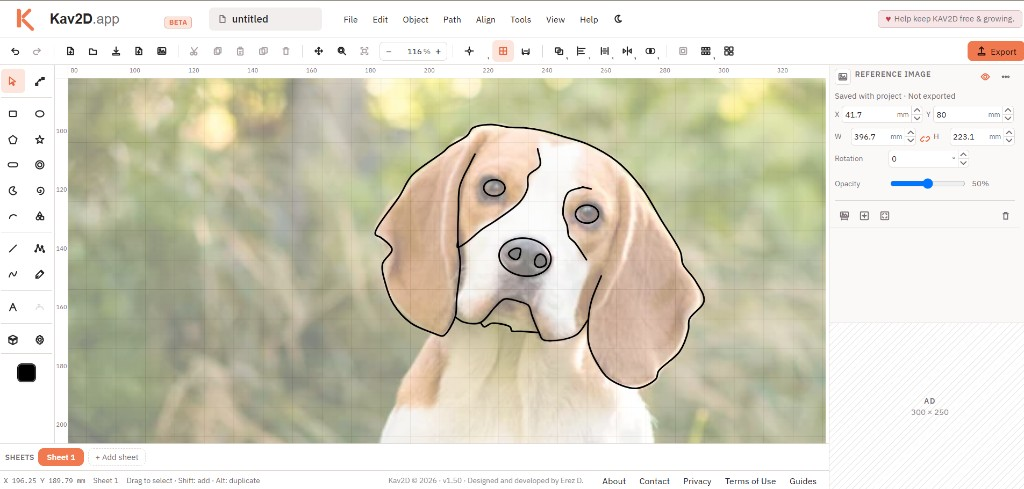
To move the photo again, return to Select and click the picture where there is no shape.
All options
Inspector toolbar (icons, left to right) and matching right-click commands:
- Scale from known length — two clicks, then a real-world length.
- Center on board — move the picture to the middle of the page.
- Fit to board — fit the pixel aspect into the page and centre it.
- Remove image — delete the photo (also Delete when only the image is selected).
The ⋮ menu has Replace image… (keeps the current frame) and Remove image. Right-click the photo (not a shape on it) for the same actions without object Cut / Group commands.
One image per project. Replacing updates the pixels and keeps position and size when a picture is already there.
What is exported
Export SVG or DXF writes the drawing objects only. The reference image is stripped first. Nest, Boolean, and “select all” also ignore it. After you hide or remove the photo, you should see only the paths you intend to cut or engrave.
Example: a dog face
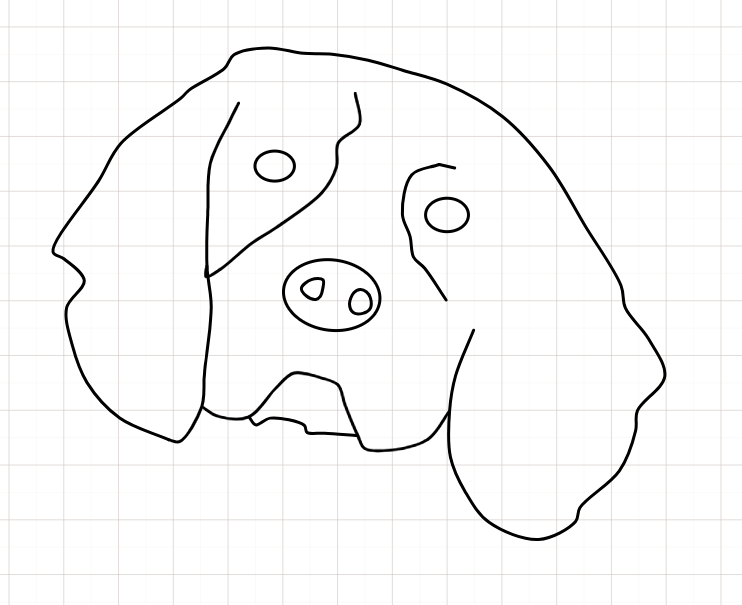
- Add a photo of the dog. Fit it on the board and drop opacity to about 50% so the grid and your line stay visible.
- Optional: if you know a length on the animal or a ruler in the shot, use Scale from known length so the outline matches real size.
- Choose Spline. Click around the head, ears and muzzle. Double-click, Enter, or click the first point to close.
- Add smaller closed paths for eyes and nose if you want cut-outs or engrave details.
- Hide the image. Clean nodes if a curve wobbles. Set Line colour for cut versus engrave.
- Export SVG or DXF. Open the file in your laser software and confirm the photo is gone.
What to learn next
Drawing tools are covered in Getting Started. Combine closed traces with Boolean Operations. When the outline is ready, follow Preparing Files for Laser Cutting and SVG and DXF Import/Export. For automatic conversion of line art, use Trace Image.