

Boolean Operations
Boolean commands build one path from overlapping closed shapes. They are not the same as Group and they are not the same as Delete.
Where to find them
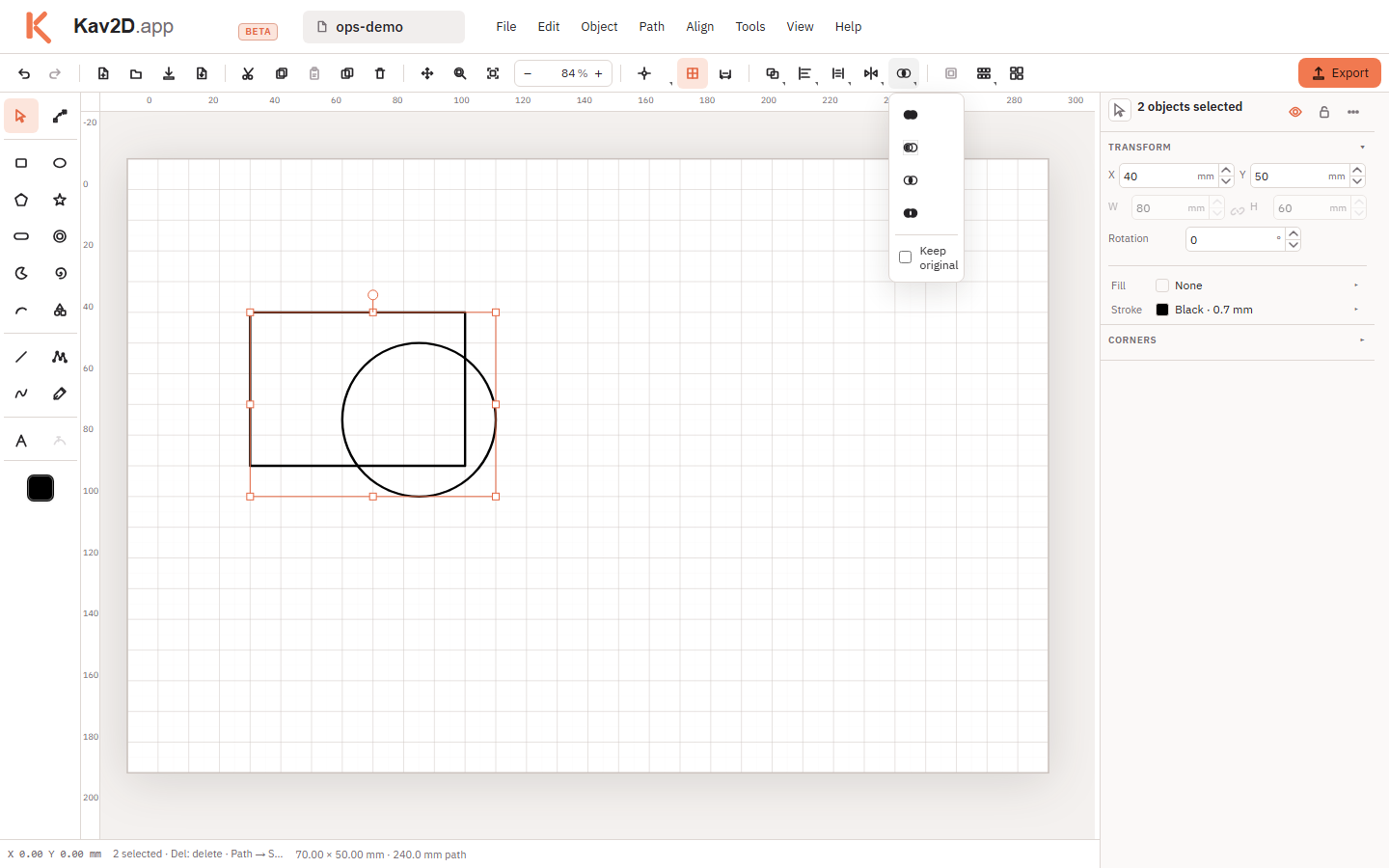
The left Boolean palette (intersect icon) contains Union, Subtract, Intersect and Exclude / XOR, plus a Keep original checkbox. Path repeats those commands and adds Subtract front, Subtract back and Divide. The toolbar Subtract button is the same as Path → Subtract front.
Shared rules
- You need at least two closed shapes. Open paths cannot be unioned or subtracted. Close them with Path → Close path or convert a shape to a closed path first. If Kav2D cannot run the command it reports: Boolean operations need at least two closed shapes…
- Shapes must overlap (or nest) for Intersect; otherwise you may get no geometry.
- Select two or more objects. The first selected object is the subject for Subtract: later-selected shapes are cut out of it. Subtract back reverses that.
- The new object copies stroke, fill and style from the first selected object. Colour is not mixed from the others.
- Unless Keep original is checked, the inputs are replaced by the result.
- Group only nests objects for moving and hiding. It does not merge outlines. Use Union when you need a single cut contour.
- Delete removes an object. Subtract removes the overlapping region from another shape and leaves a hole or a bitten outline.
Union
Merges overlapping closed shapes into one outline (or a compound outline if islands remain).
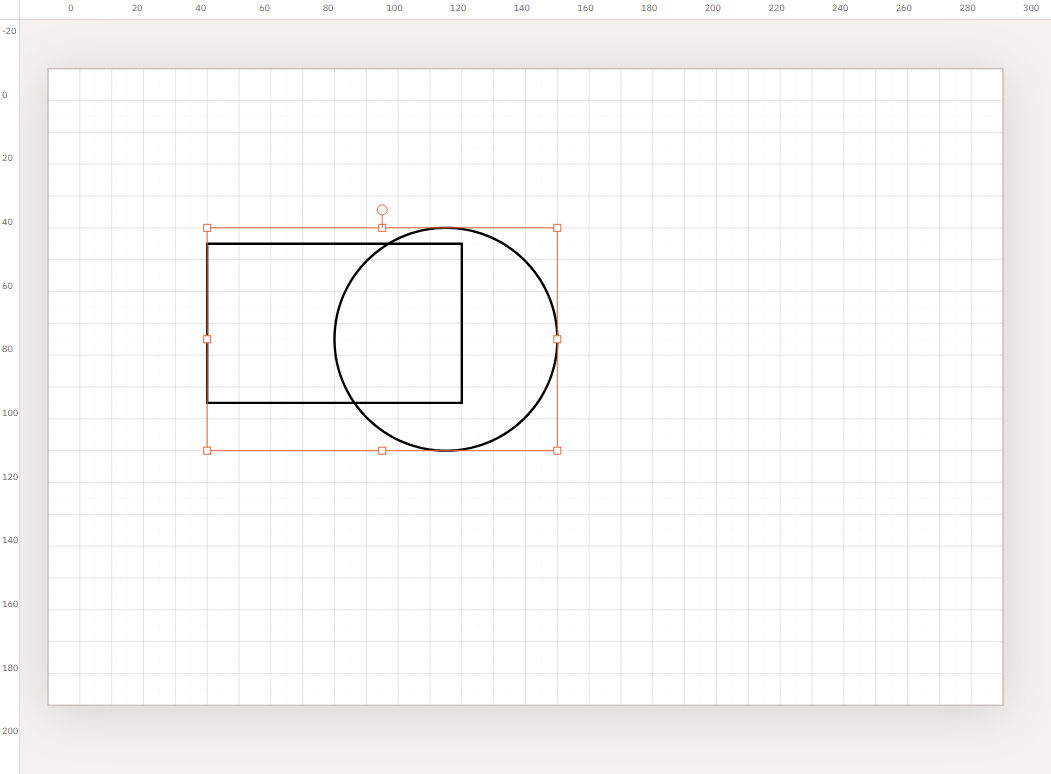
- Draw two overlapping closed shapes (for example a rectangle and an ellipse).
- With Select, click the first shape, then Shift-click the second.
- Open Boolean and click Union, or choose Path → Union.
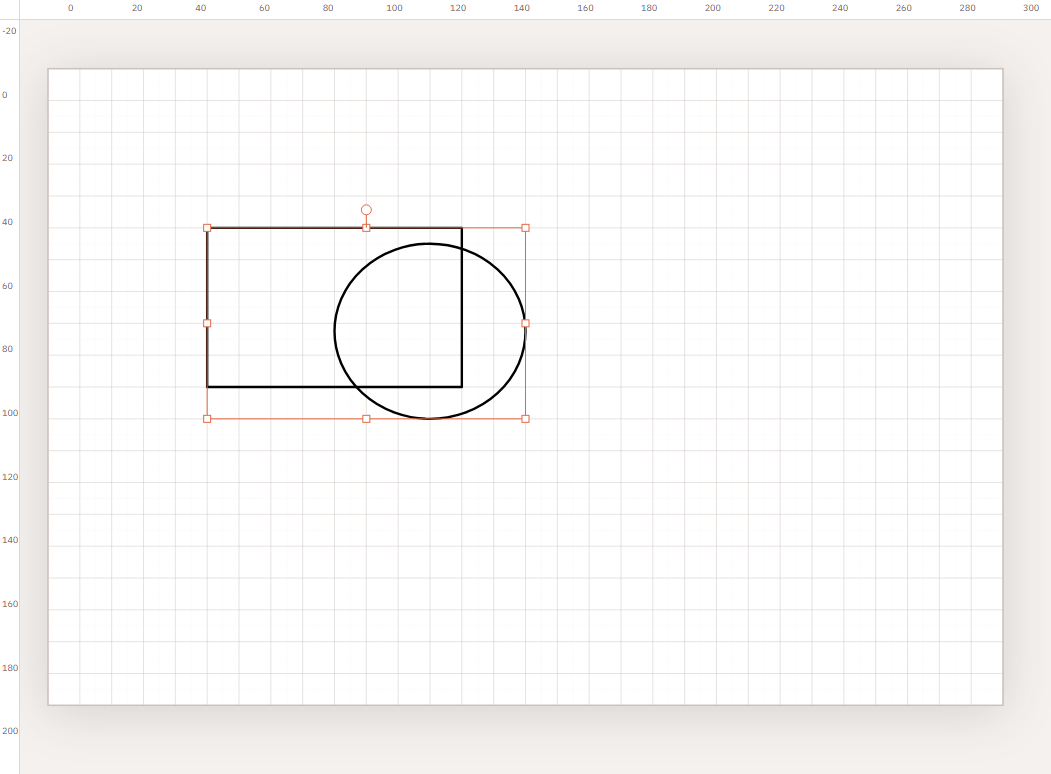
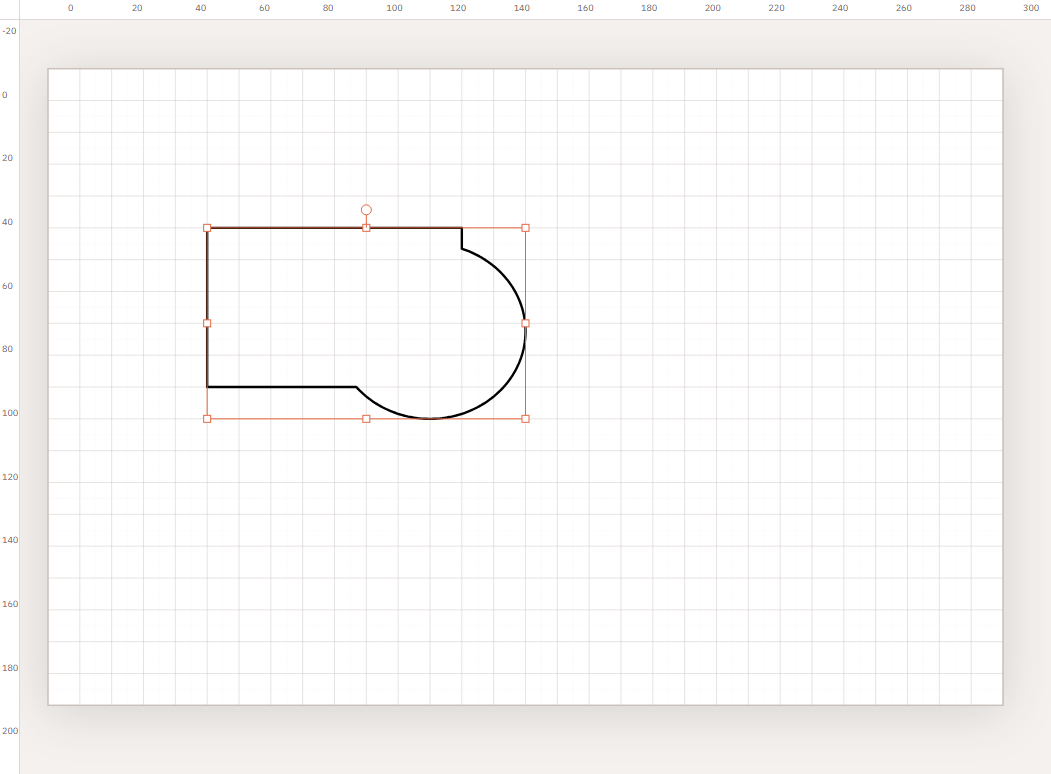
Laser example: Union a slot with a plate outline so the cutter sees one outer path instead of stacked edges that would cut twice.
Subtract (front)
Subtract / Subtract front cuts later-selected shapes out of the first selected shape. Selection order matters.
- Draw a large rectangle (the tag body) and a smaller ellipse that overlaps it (the hole).
- Click the rectangle first, then Shift-click the ellipse.
- Click Subtract. The hole is removed from the rectangle.
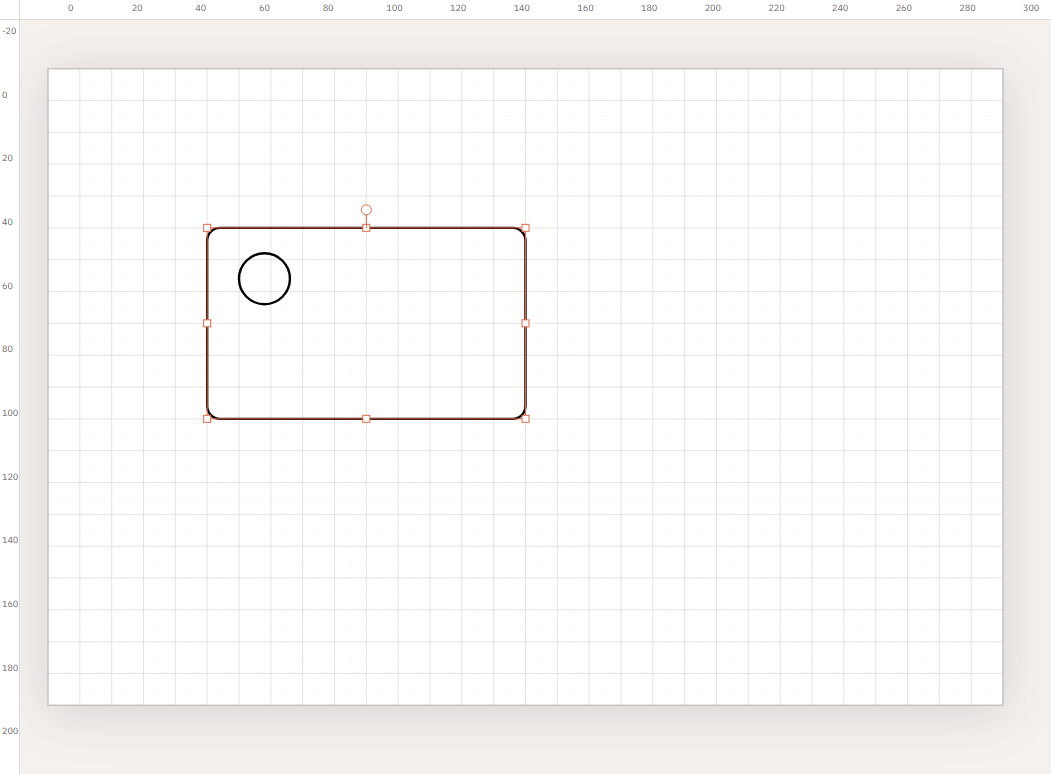
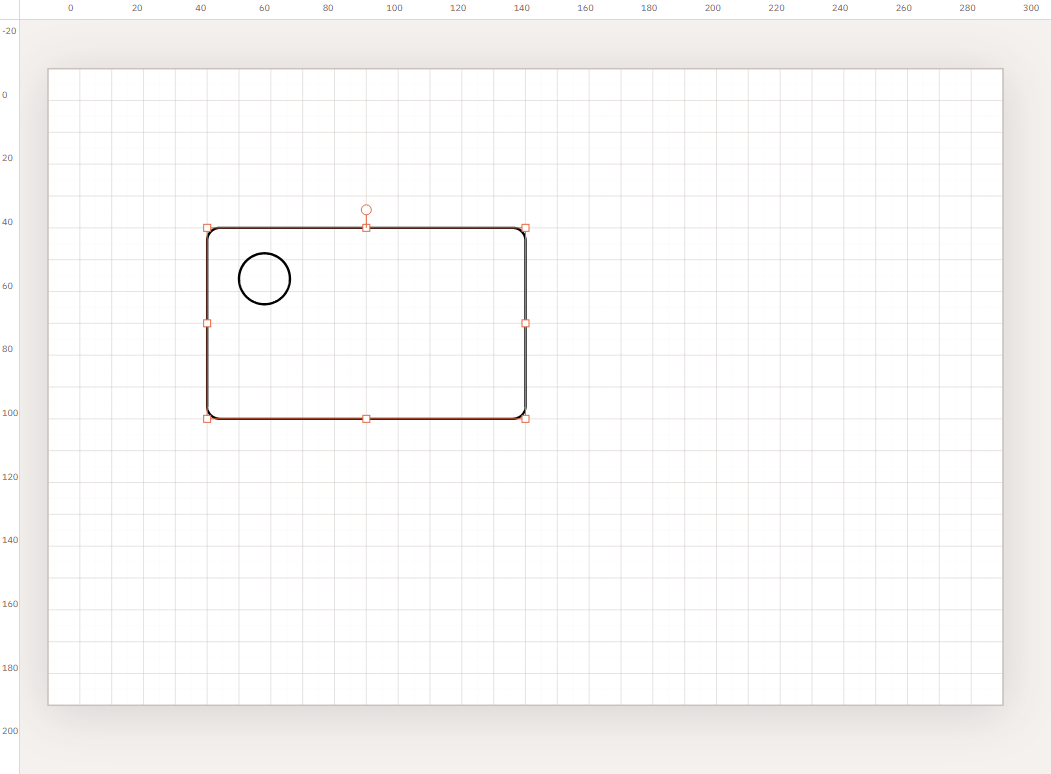
Path → Subtract back cuts the first selected shape out of the later ones — use it when you picked the cutter first by mistake.
Laser example: a hanging hole in a key tag. Subtract is the right tool; deleting the circle would only remove the circle object and leave the tag solid.
Intersect
Keeps only the overlap of the closed shapes.
- Select two overlapping closed shapes (order does not define a “cutter”, unlike Subtract).
- Choose Intersect.
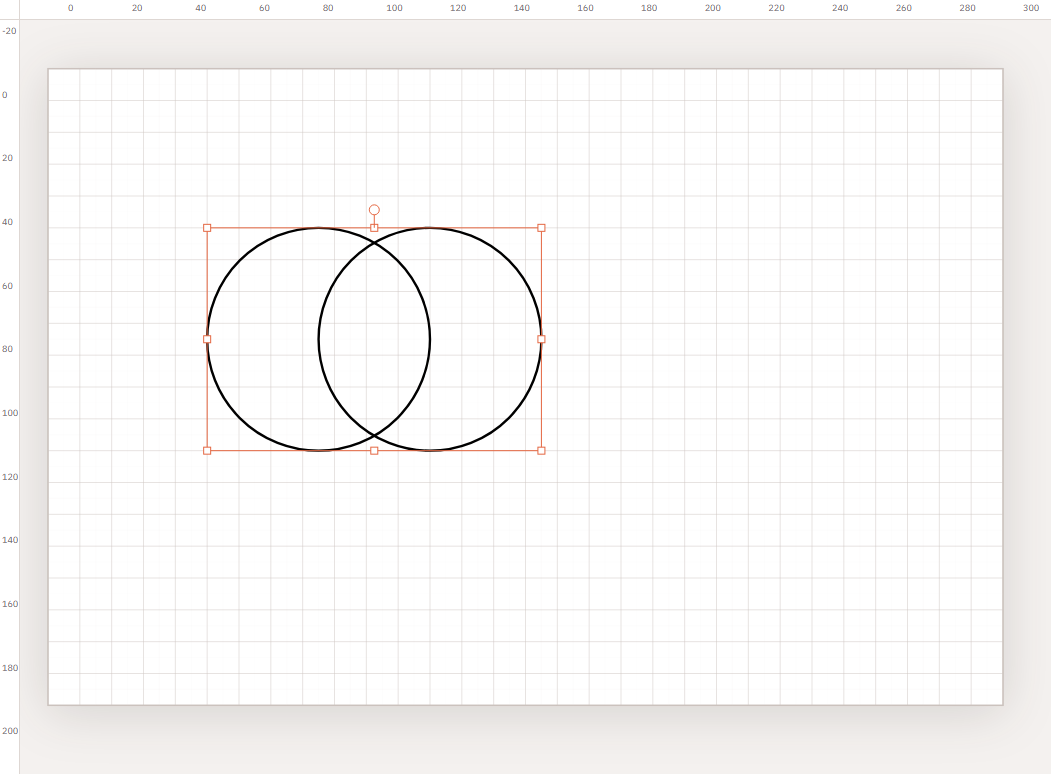
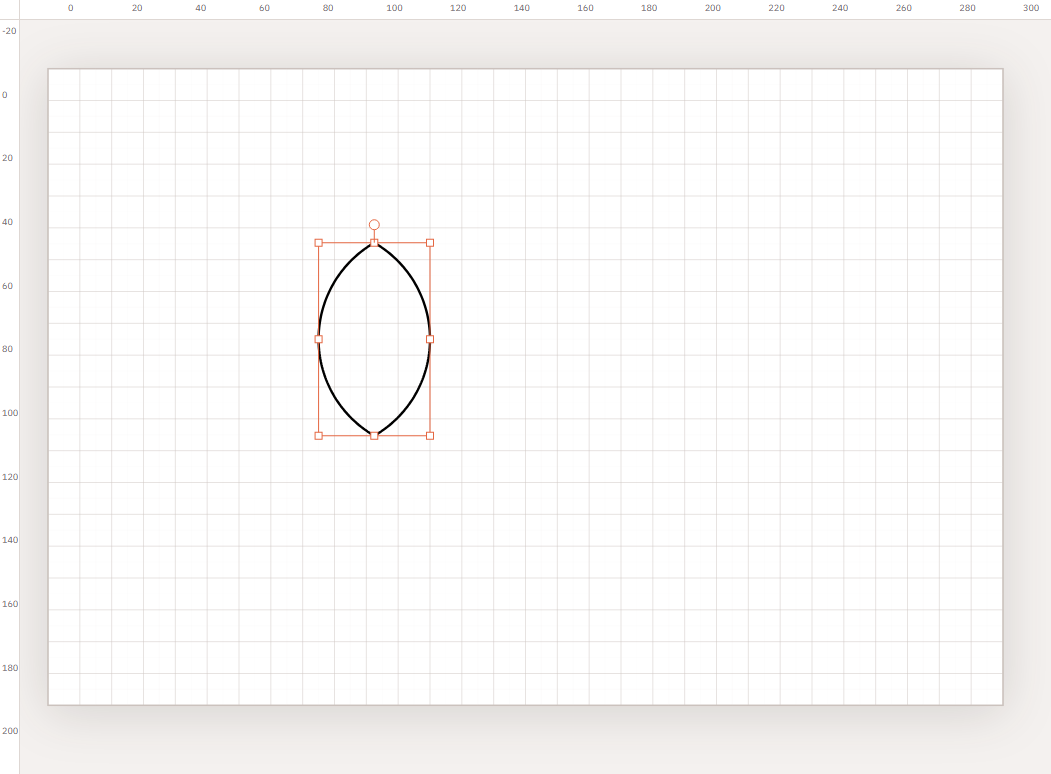
Laser example: a window where two stacked parts overlap, used as a shared cut-out.
Exclude / XOR
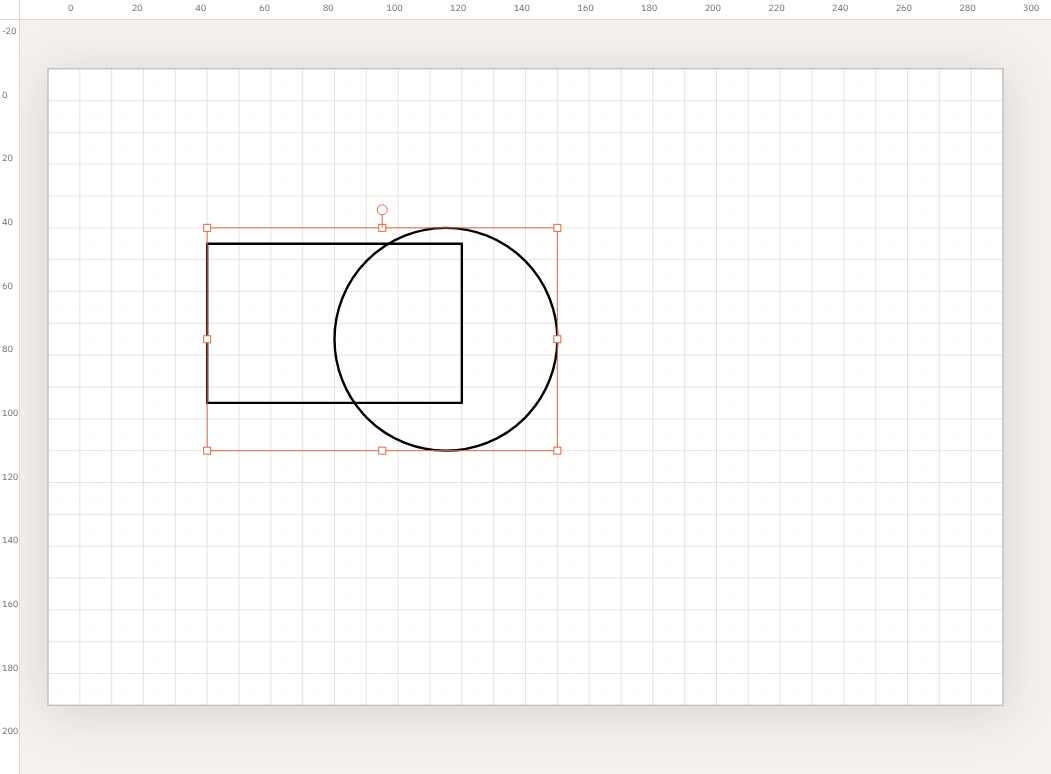
Exclude / XOR keeps regions that belong to one shape or the other, not both — the overlap is removed. Map menu: Path → Exclude.
Divide
Path → Divide splits the closed shapes into the overlap plus the leftover pieces (intersection, A-only, B-only). Use it when you need the fragments as separate paths rather than a single union or hole. It is not on the Boolean toolbar.
Example: name tag with a hanging hole
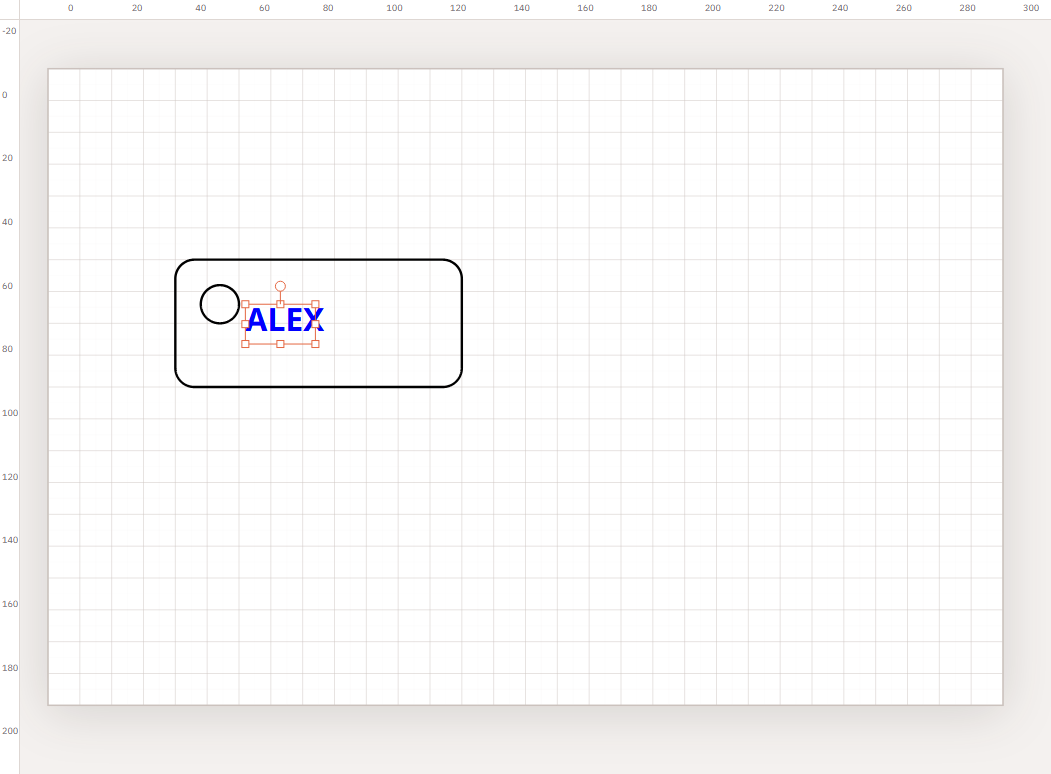
- Draw a Rectangle for the tag body. Round corners in the inspector if you want a friendlier outline.
- Draw an Ellipse near the top for the hole, overlapping only the interior of the tag.
- Add Text for the name. Keep it inside the body, away from the hole.
- Select the rectangle first, then the ellipse, then Subtract.
- If you need the name as cut or engrave geometry, select the text and use inspector Convert text to outlines. Union the outlines with the body only if you want them as holes or welded shapes — engraving usually keeps text as a separate stroke colour instead.
- If the hole vanished, you selected the ellipse first. Undo, then select the body first, or use Subtract back.
Limits and recovery
- Open polylines and lines are skipped until closed.
- Self-overlapping or hairline geometry can confuse the clipper; simplify or redraw.
- Groups are not Boolean subjects until you ungroup or convert contents to closed paths.
- Undo restores the previous objects. With Keep original on, you can also delete the extra result.