

Optimizing a Layout to Reduce Material Waste
Optimize Layout packs closed shapes onto your material so they take less space. It searches for a tighter arrangement. It does not guarantee a mathematically optimal packing.
What Optimize Layout is for
Laser cutting wastes material when parts sit far apart. Optimize Layout moves nestable parts into a tighter pack on a board you choose. Lines and live text are skipped. You need at least two closed shapes.
Locked objects stay where they are and keep their space, so you can pin a fixture or a part already cut from an offcut.
Unlike Align and Distribute
Mirror, Align and Distribute line objects up or space them evenly. They do not rotate parts to fill leftover sheet. Use Align for a straight row. Use Optimize Layout when you want a tighter pack on the material.
Open the tool
- Select the parts to pack, or leave the selection empty to pack the current sheet.
- Choose Tools → Optimize Layout…, Object → Optimize Layout…, or the toolbar button Optimize Layout.
The dialog lists how many parts will move, how many were skipped, and roughly how much of the board the current layout covers.
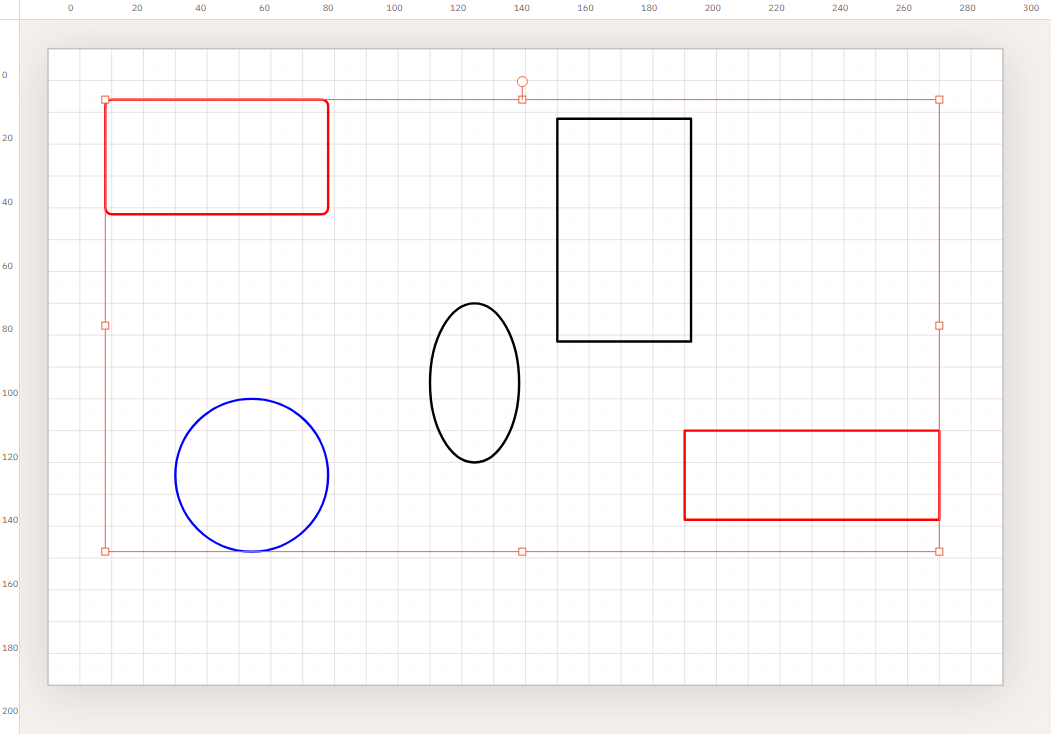
What to pack
The first field is labelled Pack. It chooses the parts, not the run button.
- Selection — appears when two or more objects are selected. Only those parts move.
- This sheet — packs every nestable part on the sheet you are viewing. Other sheets stay as they are.
- Entire project — appears when the project has more than one sheet. Parts may move between sheets. Empty sheets are removed afterwards.
In every mode, parts that do not fit the pack area continue on a new sheet of the same size.
Board size and leftover offcuts
Board width and Board height are the usable material for this pack. They start as the document page size from File → Document.
If you are cutting from a leftover offcut, type that piece’s size. Packing stays inside that rectangle and does not change the document page. Use full sheet appears only after you change the size; it restores the document page.
Gap, rotation and quality
- Gap — space between packed parts, in the document unit. Match your cutter’s recommended clearance.
- Allow rotation — on by default. Parts may turn in 90° steps to fit better. Turn it off to keep the current orientation.
- Quality: Fast, Balanced (default), or Best. Balanced searches longer than Fast. Best takes more time and may pack tighter. None of them prove a mathematically optimal layout.
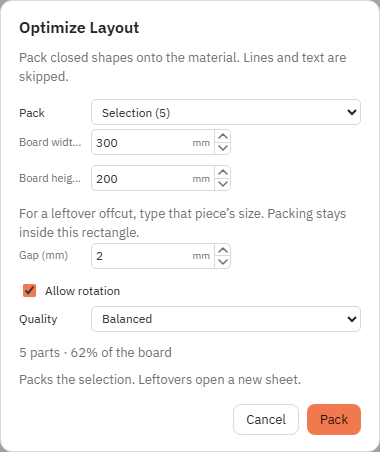
Pack, progress and cancel
Click the Pack button to start. While it runs, the dialog shows Packing… and a part count. Stop cancels the search without changing the drawing. Cancel closes the dialog (and also stops a running search).
There is no separate accept step. When the search finishes, Kav2D writes the new positions and closes the dialog. A toast reports how many sheets were used, or how many parts did not fit.
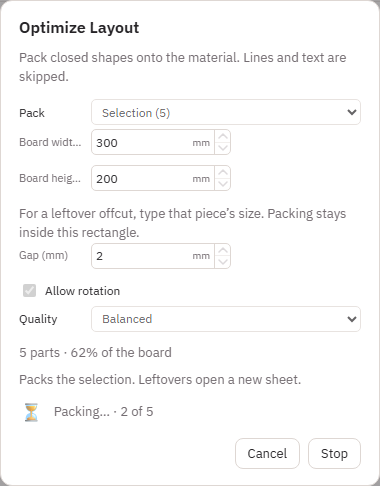
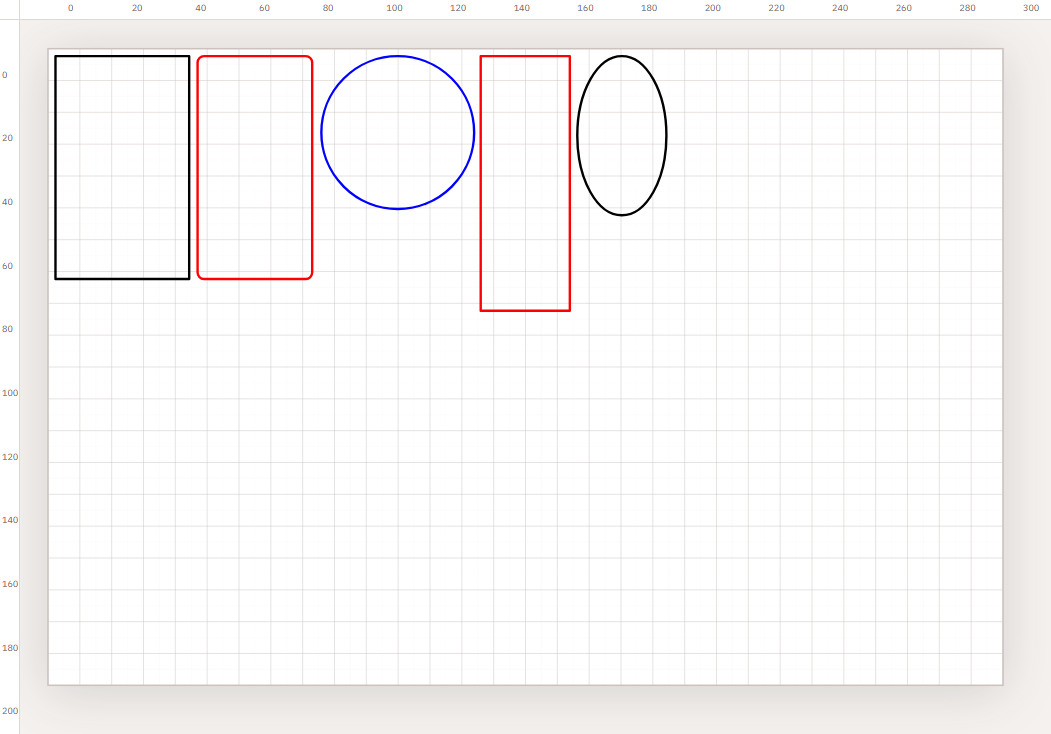
Several sheets
Switch sheets with the Sheets bar under the canvas, or the previous and next buttons. The canvas shows one sheet at a time, with a label such as Sheet 2 · 2 of 2 when more than one sheet exists.
After packing, export uses this sheet by default. To download every sheet at once, open Export and choose All sheets — files are named like Project_1.svg / Project_1.dxf. See SVG and DXF import and export.
Undo
Edit → Undo (or the usual undo shortcut) reverses the last Optimize Layout commit if you do not want the new positions.
Example
- Create or import several closed shapes of different sizes.
- Leave them scattered so they waste sheet.
- Open Optimize Layout. Keep This sheet, or choose Selection if you selected the parts.
- Leave the board at full sheet size, or type a leftover offcut size. Set Gap for your cutter. Leave Quality on Balanced unless you need a quicker or longer search.
- Click Pack. Check the layout, the toast, and switch sheets if leftovers opened a new one.
- Export with Export SVG or Export DXF after you check gaps.