

Image to Laser
Last reviewed: 5 October 2026
Image to Laser turns a photograph into a Floyd–Steinberg dithered black-and-white raster sized in millimetres. The result is meant for raster engraving, not for a vector cut outline. Processing stays in this browser.
Idea behind the method
A photo is full of greys. A typical CO₂ or diode laser engraving pass does not spray grey ink — it either fires or it does not. So the picture must become a pattern of pure black and pure white that still looks like shading when you stand back.
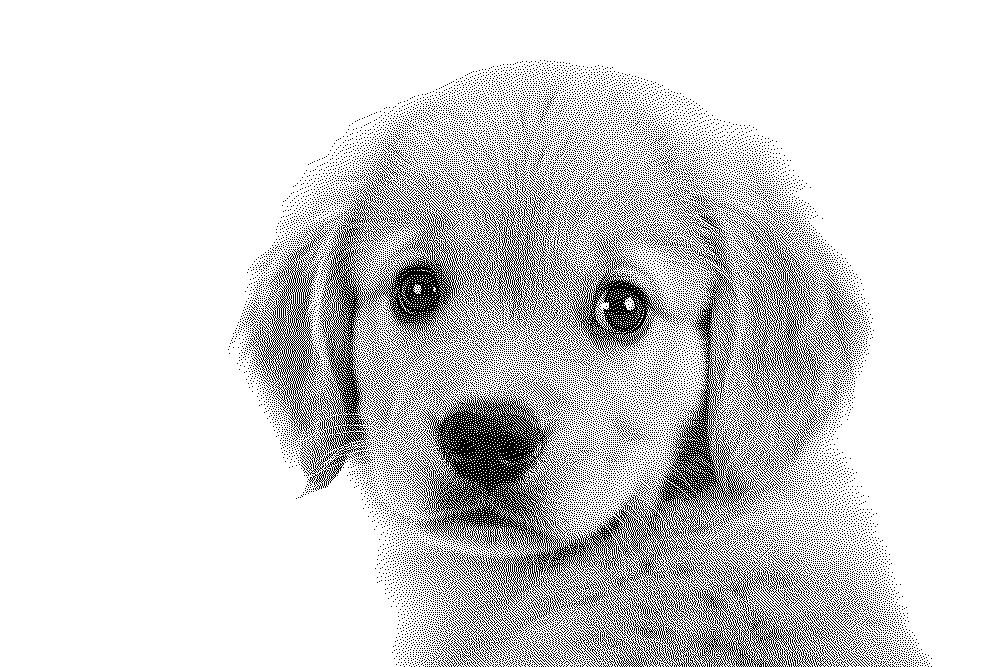
That pattern is a dither (sometimes called a digital halftone or stipple). Dark fur becomes a dense cloud of black dots. Highlights become sparse dots or empty white. Mid-tones sit in between. Your eye blends the dots into continuous tone; the machine only sees on/off pixels it can scan line by line.
Kav2D uses Floyd–Steinberg error diffusion. For each pixel it chooses black or white, then spreads the leftover brightness error to neighbouring pixels. That keeps soft gradients from banding into flat patches, which is why a puppy’s cheek still reads as fur instead of a posterised blotch.
When to use Image to Laser
Use this tool when you want a photo-like burn: a portrait, a logo with soft shading, or a scanned sketch that should look like a newspaper halftone on wood or acrylic.
Do not use it when you need a closed knife path. A dithered rectangle is a picture sitting on the sheet; it does not become a cut contour unless you also draw one.
Open the tool
- In the editor, choose File → Image to Laser…, Tools → Image to Laser…, or the Image to Laser icon on the left toolbar.
- Click or drop a PNG, JPEG, WebP, GIF or BMP. Work happens on this computer; the photo is not uploaded to a Kav2D server.
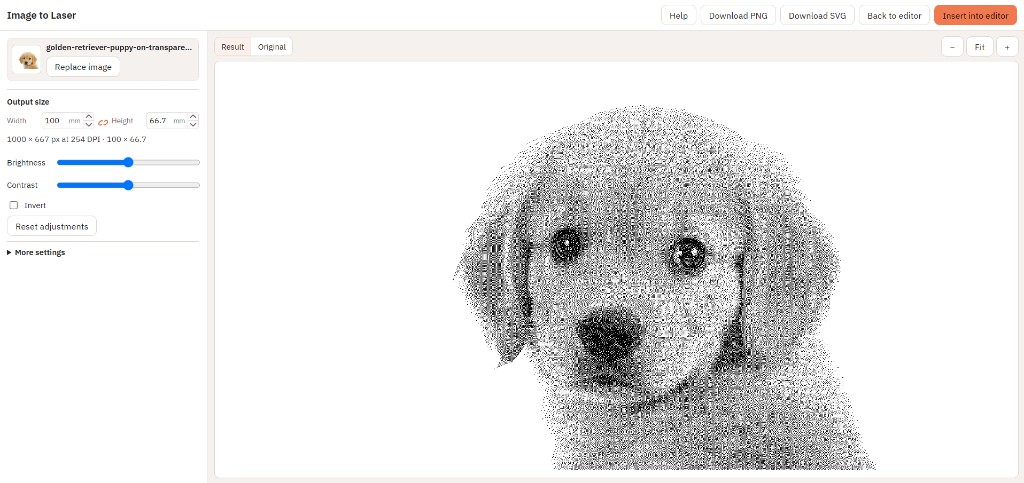
- Check the Result tab for the dither. Switch to Original to compare.
Size, DPI and preview
Set width and height in millimetres. Lock aspect ratio if you want the photo’s proportions kept. DPI (default 254) and those millimetres decide how many engraving pixels are produced: more millimetres or a higher DPI means a larger pixel grid and a slower, finer burn.
Brightness, contrast and invert adjust the source before dithering. They do not set laser power. After the dots look right on screen, speed and power still belong in the machine software.
Insert and crop
Choose Insert into editor (or Update image if you reopened the same object). The raster sits as a laser-image rectangle you can move and scale.
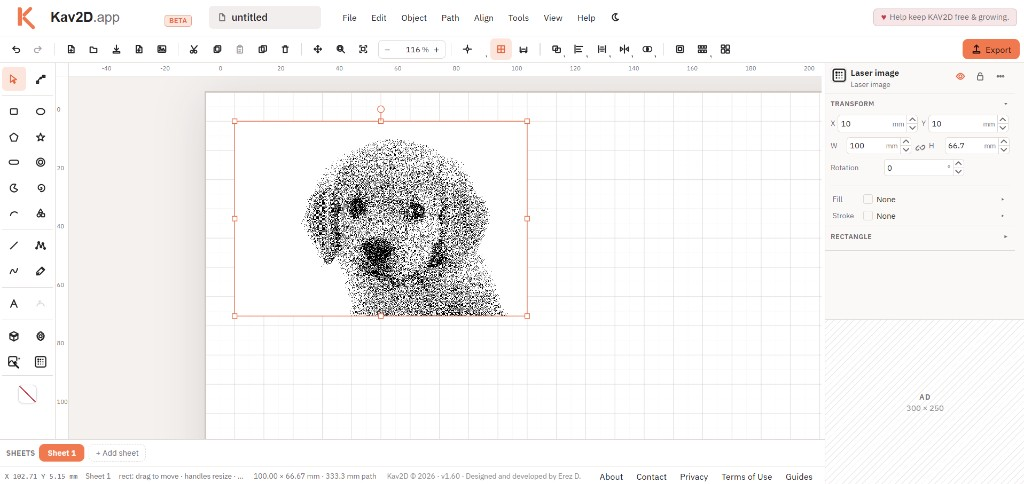
To keep only part of the picture:
- Draw a closed shape (ellipse, rectangle or closed path) over the area you want.
- Select the image. If exactly one closed shape overlaps it, choose Intersect from the Boolean palette or Path → Intersect. You can also Shift-click both objects and Intersect.
- The shape is consumed and the image is masked. Use Remove crop in the inspector if you need the full rectangle again.
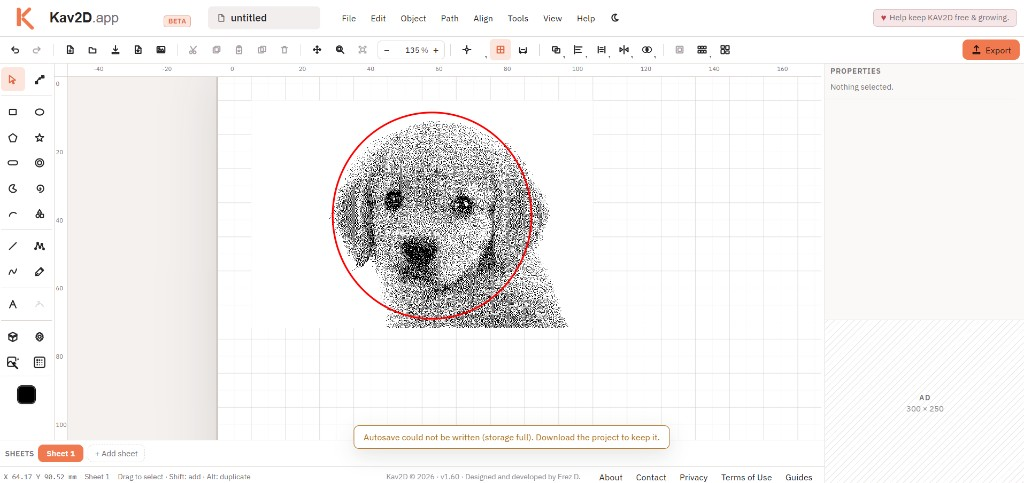
Union, Subtract and the other Boolean commands stay vector-only. They will not punch a raster. Intersect is the crop command for Image to Laser.
Export SVG, PNG and DXF
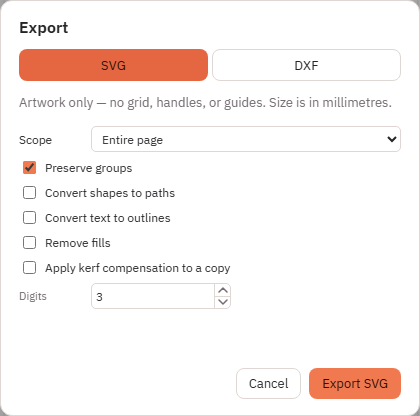
From the Image to Laser dialog you can download a standalone PNG or SVG of the current dither. From File → Export…, SVG includes the raster at millimetre size so RDWorks-style importers can place it with the vectors.
In the laser software
- Confirm the job is 1:1 in millimetres.
- Assign the raster layer to a scan/engrave operation, not a vector cut.
- Engrave the photo before cutting any outline that shares the same sheet.
- Run a scrap test. Dither density that looks right on screen can still be too dark on wood.
Next: Preparing Files for Laser Cutting, SVG and DXF Import/Export, or Trace Image if you need vectors instead of pixels.