

Importing and Exporting SVG and DXF Files
Kav2D can import SVG and DXF and export both formats. Use the File menu commands, or the toolbar Import SVG or DXF and Export buttons.
Import SVG
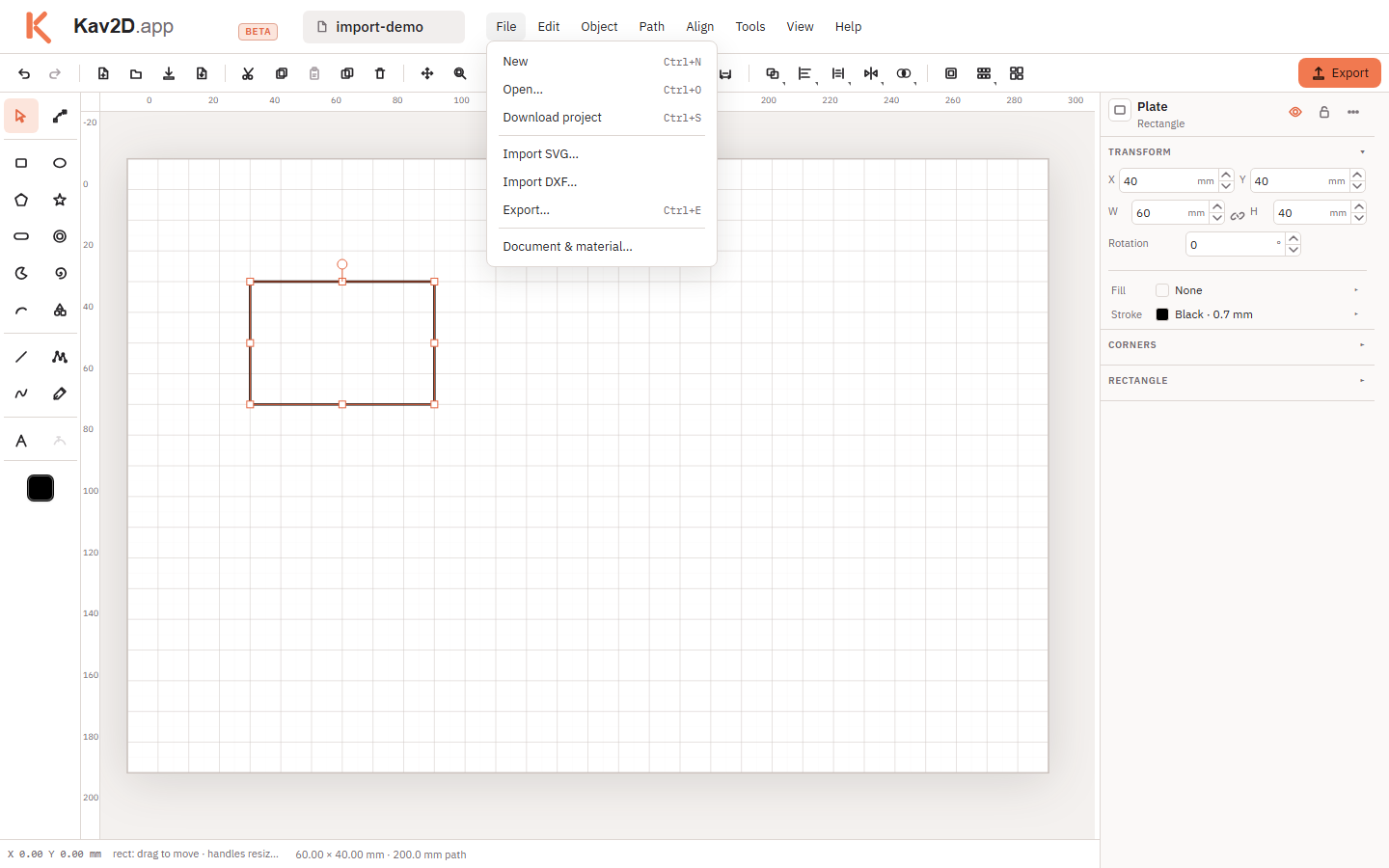
- Choose File → Import SVG…, or Import SVG or DXF on the toolbar and pick an
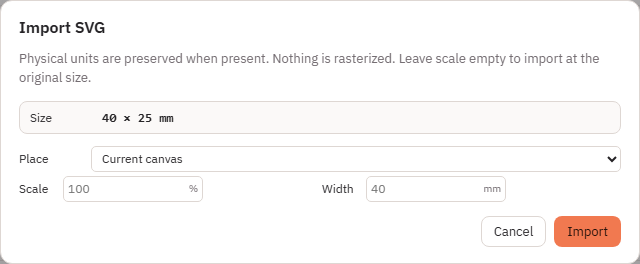
.svgfile. - The Import SVG dialog opens. Physical units are preserved when present. Nothing is rasterized. Leave scale empty to import at the original size.
- Place: Current canvas or New tab.
- Optional Scale (%) or Width (mm). If the file has no physical units, choose Unitless as millimetres or pixels (96 dpi).
- Click Import. The history step is Import SVG.
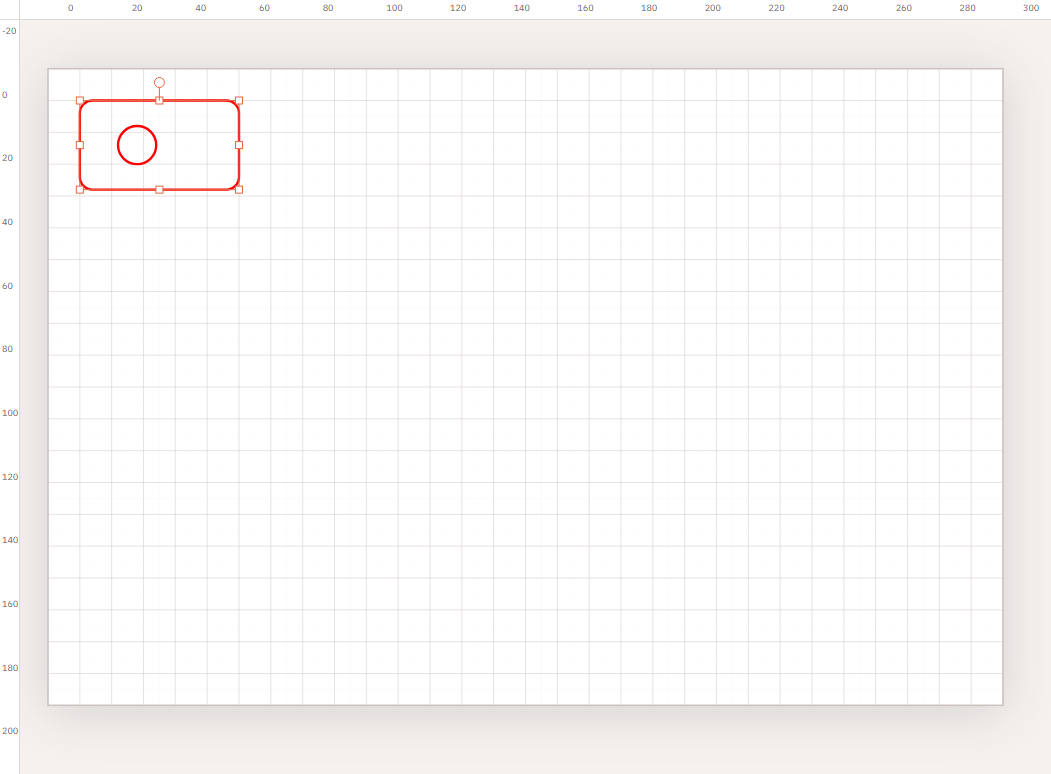
Imported SVG objects stay editable. Typical behaviour:
- Vector shapes become ordinary Kav2D objects (paths, rectangles, ellipses, text, and so on).
- The file is placed in one group so you can move it together, then ungroup.
- Stroke colours and stroke widths from the SVG are kept when they are present.
- Open and closed paths are imported as drawn; Kav2D does not auto-close open paths.
- Live text is imported as text when the file contains a
textelement. - Features such as
image,use, clip paths, masks, filters and gradients are skipped. A warning lists unsupported features. Nothing is rasterized.
Import DXF
- Choose File → Import DXF…, or use Import SVG or DXF and pick a
.dxffile. - DXF does not open the Import SVG scale dialog. Geometry is inserted immediately. The history step is Import DXF. The document name can follow the file name.
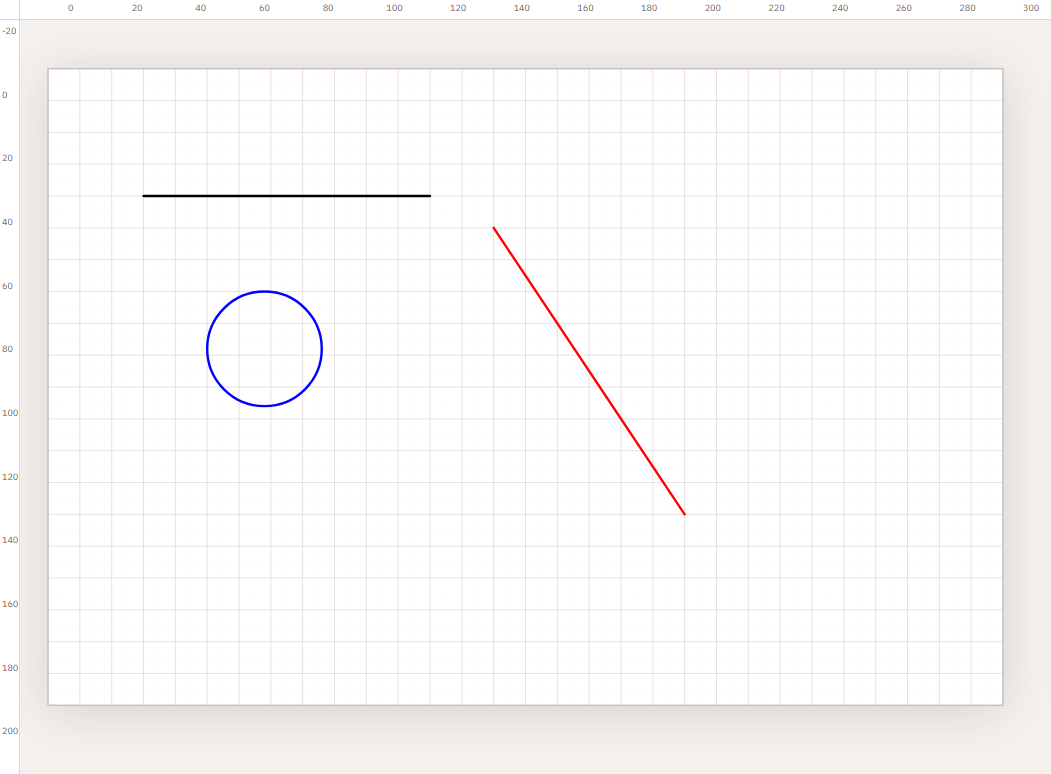
Supported entities include LINE, CIRCLE, ARC and LWPOLYLINE. Other DXF entity types are not imported.
- Layer names are not recreated. Only colours are kept (ACI / layer colour → stroke).
- Y is flipped using the current page height so CAD Y-up matches the Kav2D page.
- Objects remain editable. There is no automatic grouping of the whole file.
- If no drawable objects are found, Kav2D warns and inserts nothing.
What to check immediately after import
- Scale versus your material and File → Document page size.
- Stroke colours (they often become laser operations later).
- Open paths that should be closed for cutting.
- Groups (SVG) — ungroup if you need to Boolean or nest individual parts.
- Missing features listed in the import warning toast.
Open Export
Choose File → Export… or the toolbar Export button. The dialog title is Export, with SVG and DXF tabs.
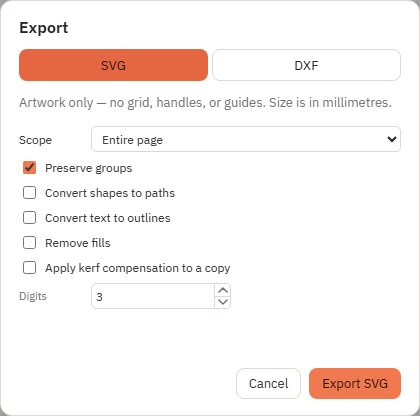
Export SVG
Artwork only — no grid, handles, or guides. Size is in millimetres.
- Export: This sheet, All sheets, or Selection. All sheets downloads Project_1.svg, Project_2.svg, and so on.
- Frame: Full sheet or Crop to drawing.
- For cutting: Convert text to outlines, Remove fills, Apply kerf. Extra SVG options sit under More options.
- Click Download SVG. If you leave text live, Kav2D may warn that the file needs the original fonts unless you convert to outlines.
Kerf uses the document Kerf value (File → Document) on a copy: offset by half kerf. It is optional and does not change the objects on the canvas.
Export DXF
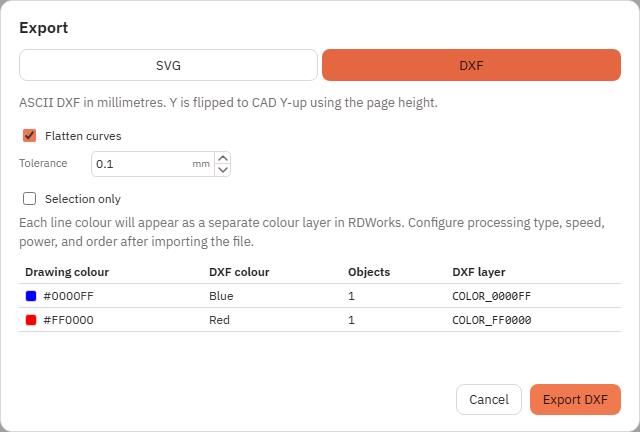
ASCII DXF in millimetres. Y is flipped to CAD Y-up using the page height. Image to Laser rasters are omitted; the dialog warns when one is in the export. Use SVG or PNG for those pictures — see Image to Laser.
- Same Export choices as SVG, including All sheets as Project_1.dxf, Project_2.dxf, …
- Flatten curves and Tolerance for software that does not keep splines.
- Colour table: drawing colour, what it maps to, and the DXF layer. Remap if two colours would land on the same layer.
- Live text is outlined during DXF export. The button shows Preparing… while that runs.
- Click Download DXF.
The dialog notes that each line colour appears as a separate colour layer in RDWorks. Processing type, speed, power and order are set in the laser software, not in Kav2D.
When to choose SVG or DXF
| Format | Best for | Preserves in Kav2D | Check after export |
|---|---|---|---|
| SVG | Browser and many laser apps that map stroke colours | Groups (optional), strokes, fills (unless removed), live or outlined text | Scale in mm, strokes, text outlines, closed paths |
| DXF | CAD and laser software that expects DXF | Geometry, stroke colours as DXF layers; not fills, Image to Laser rasters, or Kav2D group structure | Units (mm), Y-up, colours/layers, flattened curves, outlined text |
Open the file in laser software
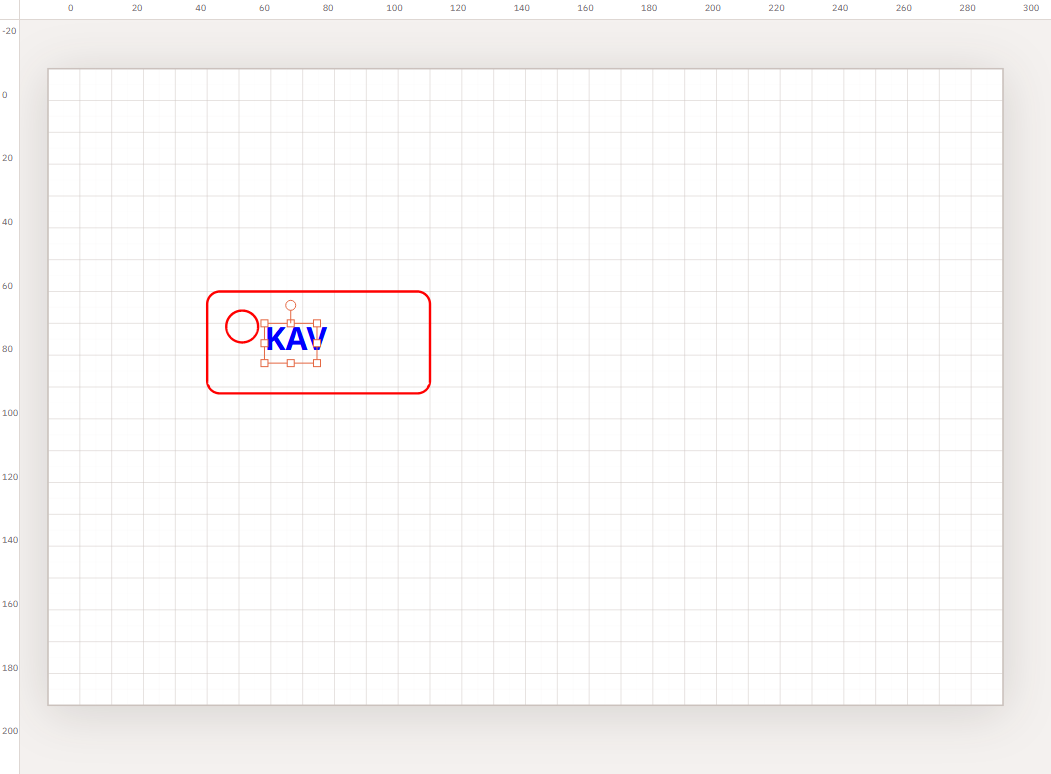
Confirm scale, duplicate lines, closed cut paths and colour mapping in the cutter program. Continue with Preparing Files for Laser Cutting.