

Preparing Files for Laser Cutting
How to organise a Kav2D drawing so a laser-cutter program can map strokes to cut, engrave and mark. Kav2D does not run the machine.
Stroke colours as layers
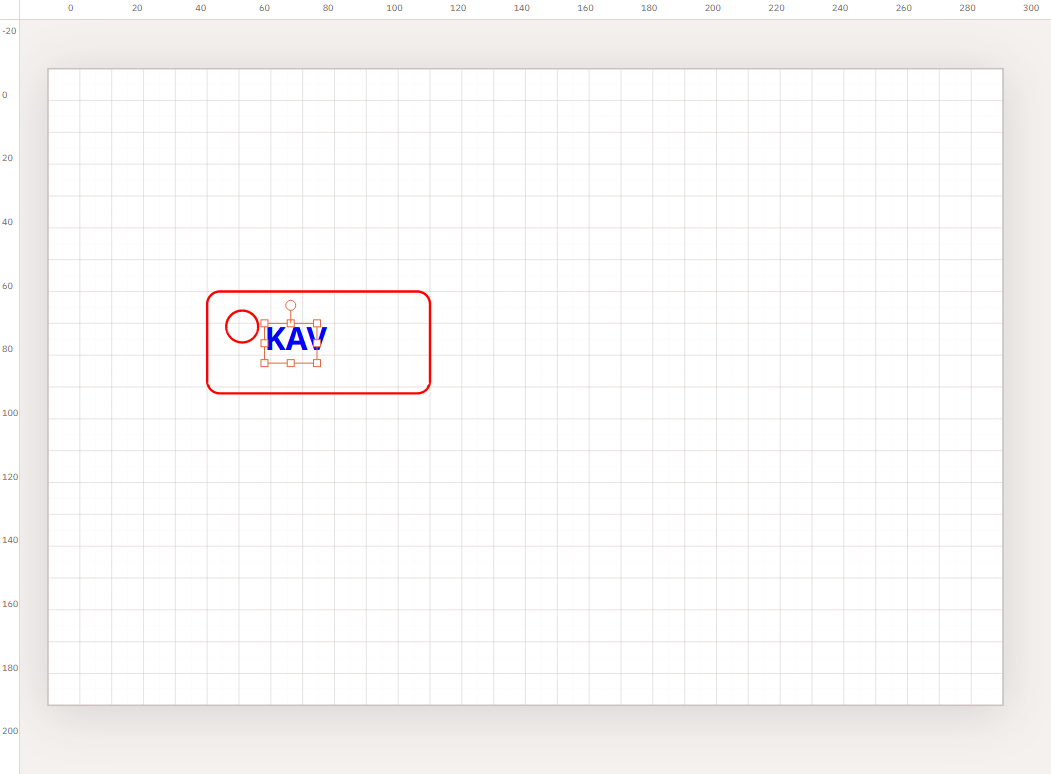
Kav2D has no separate CAM layer panel. People commonly use Line colour so that LightBurn, LaserGRBL, RDWorks or similar can assign each colour to an operation. The swatches are named Black, Red, Orange, Yellow, Green, Cyan, Blue, Magenta, Pink and Purple. The code comments that they have no manufacturing meaning inside Kav2D.
A typical shop convention — examples only, not Kav2D defaults:
- Red — often mapped to cut
- Blue — often mapped to vector engrave
- Black — often mapped to mark or another engrave
Your machine software decides what Red or Blue actually does, including power and speed. Do not copy power percentages from a website into a job without a material test on that machine.
Organise the drawing
- Use one stroke colour per operation type. Change it with Line colour.
- Leave Fill off unless your cutter workflow needs a fill. Default drawings already use no fill. Export can Remove fills.
- Close paths that must cut through. Use Path → Close path on open polylines.
- Watch for duplicate lines (two copies of the same edge). Union overlapping outlines when they should be one contour.
- Overlapping closed shapes that you did not Subtract or Union can cut twice and scorch the kerf.
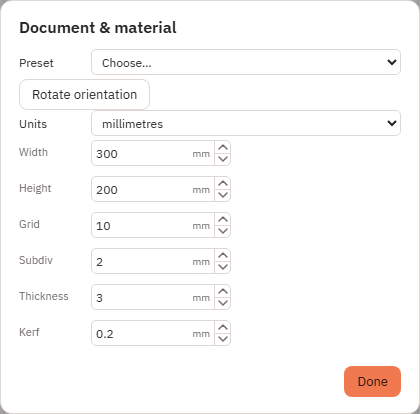
- Confirm Units, Width and Height in Document & material….
- After import in the cutter, check the colour order / layer order. Kav2D does not control that program’s sequence.
- Use Boolean operations for clean outer profiles and holes. Group only bundles objects; it does not weld geometry.
- Convert live text with inspector Convert text to outlines, or enable Convert text to outlines in Export…, if the cutter will not keep Kav2D fonts.
- Kerf on the document is a number you type. Export can Apply kerf compensation to a copy. That offsets geometry; it is not a measured calibration of your machine.
Example: small key tag
- File → Document & material… — a small page is enough (for example 300 × 200 mm with the tag drawn at real size, such as 50 × 25 mm). Set units to millimetres. Click Done.
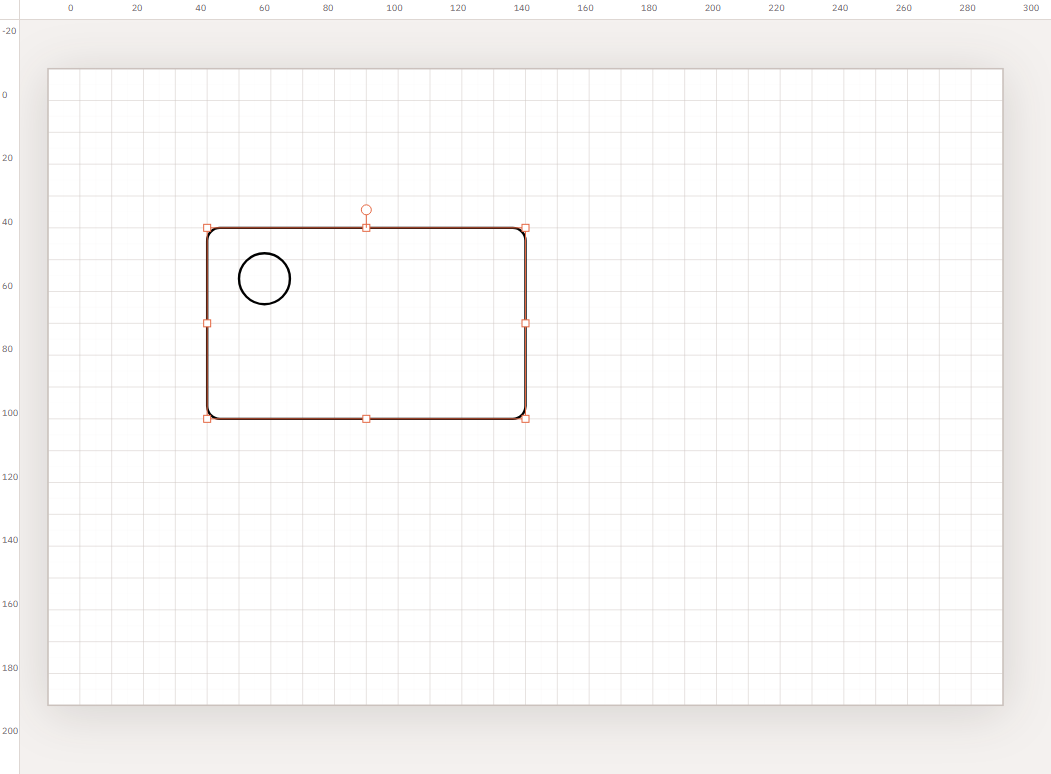
- Draw the outer shape with Rectangle (optional corner radius in the inspector).
- Draw the hanging hole with Ellipse.
- Select the rectangle first, then the ellipse, then Boolean → Subtract.
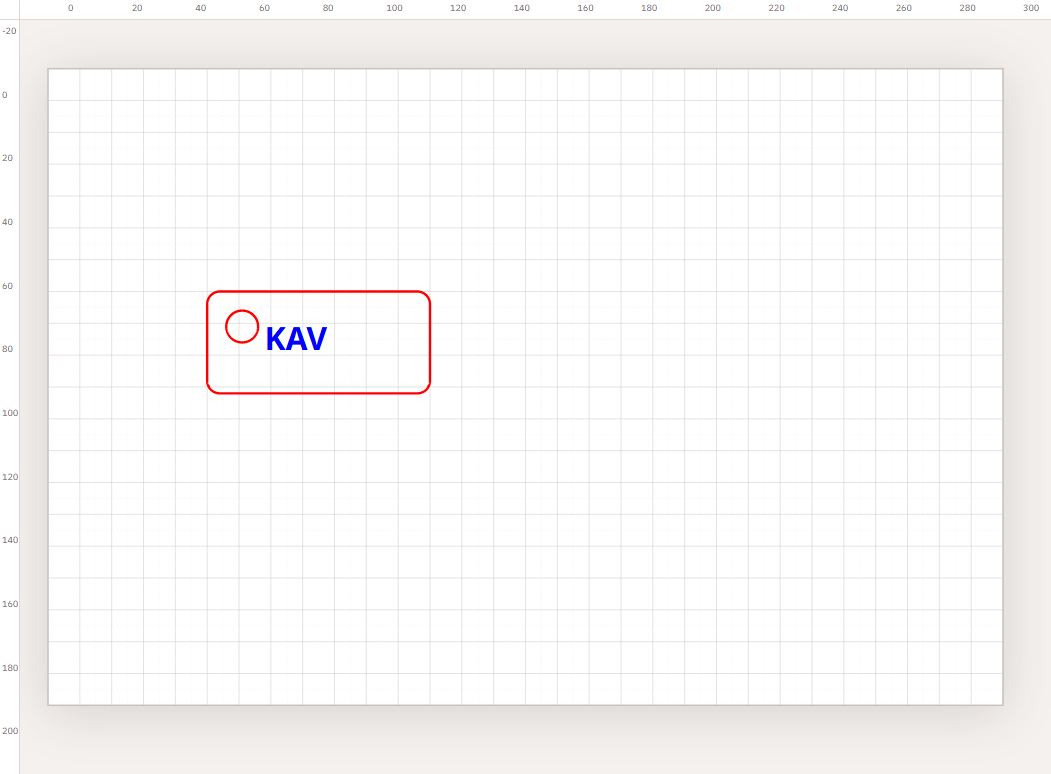
- Add Text for the name or a simple mark.
- Select the cut outline and set Line colour to Red (example).
- Select the text and set Line colour to Blue (example). Convert to outlines if you need path geometry.
- Re-read width and height of the part in the inspector so they match the physical tag.
- File → Export… — SVG or DXF, this sheet or all sheets, convert text if required, then download.
Export SVG and DXF
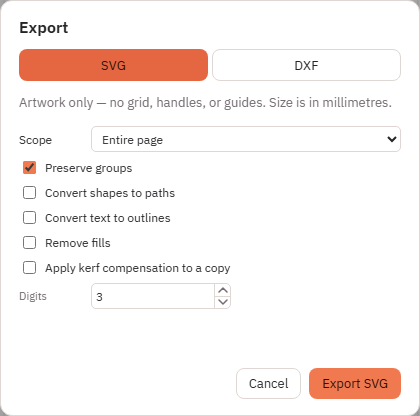
Both formats are available from File → Export…. SVG notes in the dialog: artwork only — no grid, handles, or guides; size is in millimetres. DXF maps stroke colours toward CAD-style colour indices; treat that as a colour hint for the importer, not a machine recipe. Image to Laser rasters are included in SVG and omitted from DXF — the DXF tab warns when a photo is on the sheet. See Image to Laser.
After you open the file in cutter software
- Confirm the job is 1:1 (mm vs inches is a common mistake).
- Assign Red / Blue / Black (or your colours) to cut vs engrave.
- Set operation order (usually engrave before cut).
- Look for open vectors on profiles that should cut through.
- Run a scrap test before a full sheet.
Safety
For the full Import SVG… / Import DXF… and Export dialog options, see SVG and DXF Import/Export. To pack parts before you export, see Optimize Layout. To turn a drawing into vectors, see Trace Image. For a dithered photo engraving, see Image to Laser. To generate a finger-joint enclosure, see Box Generator.