

Trace Image in KAV2D
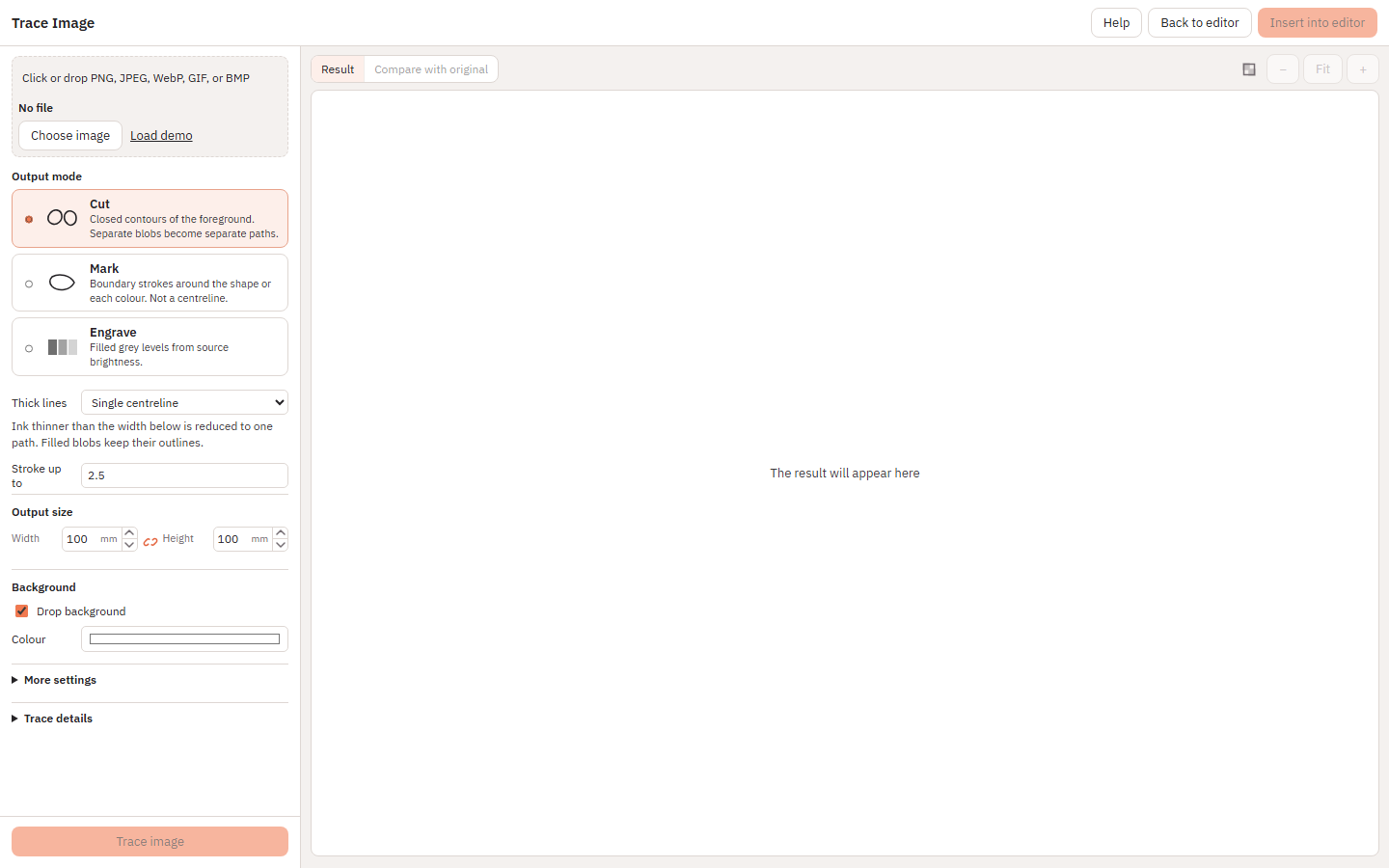
Trace Image turns a photograph or drawing into editable vector paths on the current sheet. Tracing runs in this browser. The source pixels are not sent to a server.
Not the same as a reference photo
Add Reference Image parks a picture on the board so you can draw over it by hand. That photo is never cut. See Tracing with a Reference Image.
Trace Image is automatic: it builds cut, mark or engrave paths from the pixels, then Insert into editor places those vectors on the sheet.
Open Trace Image
Choose Tools → Trace Image…, or the Trace Image button on the left toolbar. The dialog title is Trace Image.
Load a picture
Click Choose image or drop a PNG, JPEG, WebP, GIF or BMP. Load demo uses a built-in sample. Replace image keeps your other settings and loads a new file.
Tracing is meant for high-contrast artwork: line drawings, logos, silhouettes. Soft photos with gradients usually need more cleanup after insert, or Engrave instead of a single cut line.
Cut, Mark and Engrave
Output mode chooses what the vectors are for. It does not change the source file. The three examples below use the same workflow: load a picture, pick a mode, click Trace image, then inspect the preview.
Cut
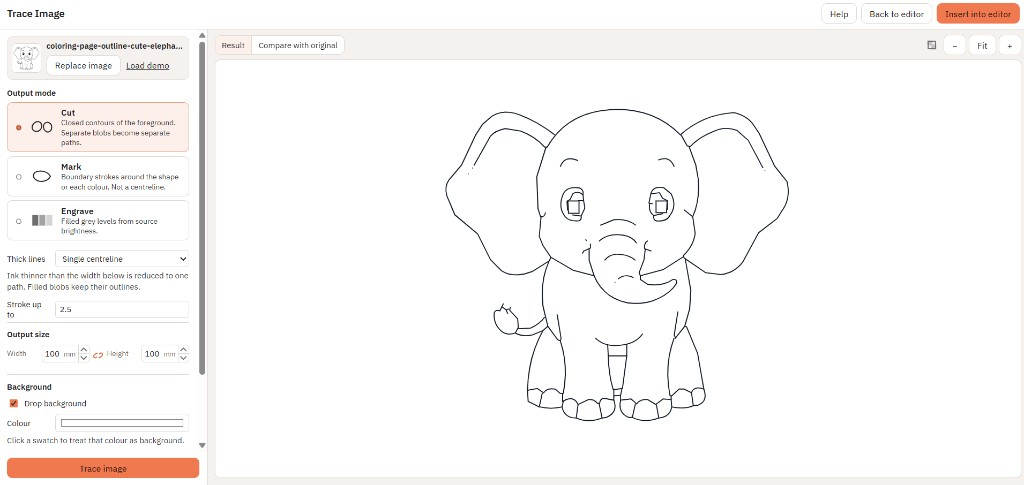
Cut builds closed contours of the foreground. Separate blobs become separate paths. On a colouring-page line drawing, Single centreline keeps one path along each ink stroke instead of outlining both sides of the ribbon.
Mark
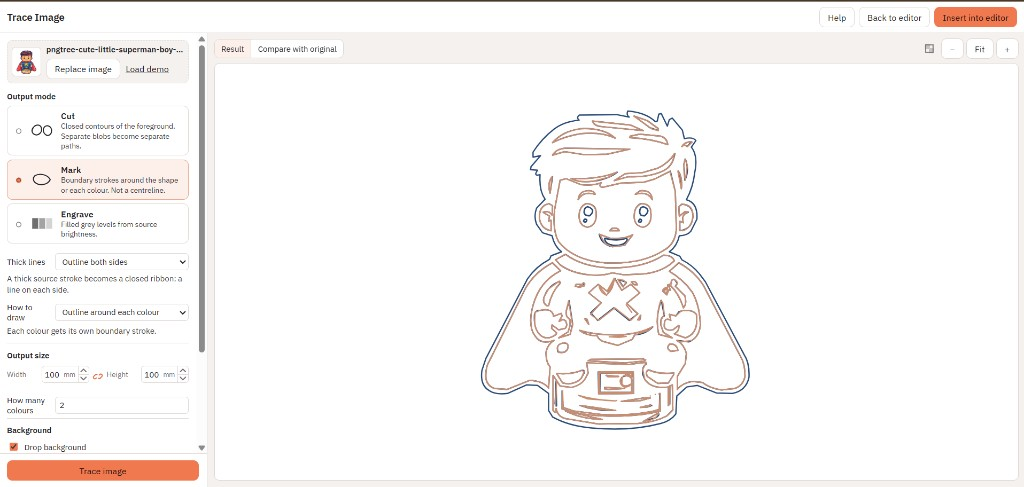
Mark draws boundary strokes around the shape or each colour. This is not a laser centreline unless you also choose Single centreline under Thick lines.
For Mark you can choose How to draw: one outline around the shape, or an outline around each colour. Mark defaults to Outline both sides. The example also uses Outline around each colour.
Engrave
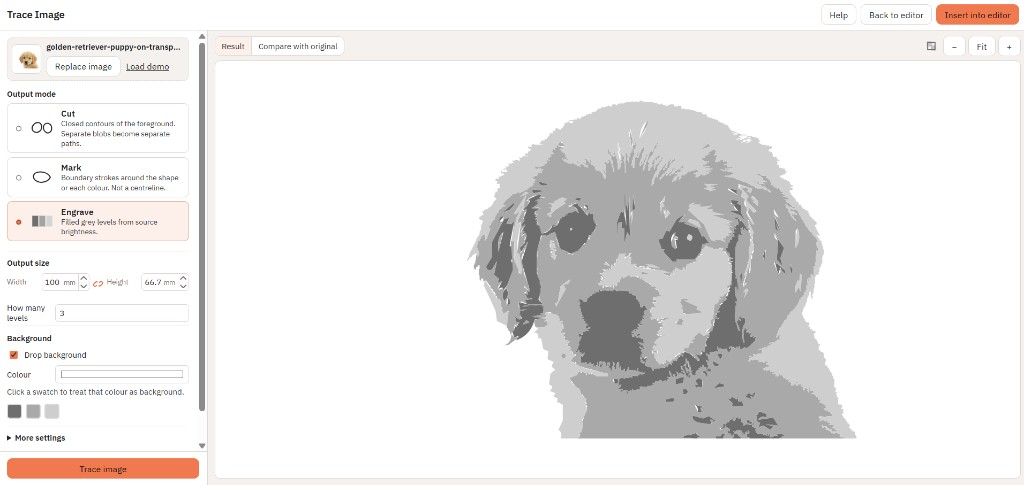
Engrave fills grey levels from source brightness. Use it for photographs and shaded art when you want a raster-like burn, not a single cut silhouette.
Thick lines and centreline
A thick stroke in the source is a filled ribbon. Outline both sides traces that ribbon as a closed pair of edges. That is the default for Mark.
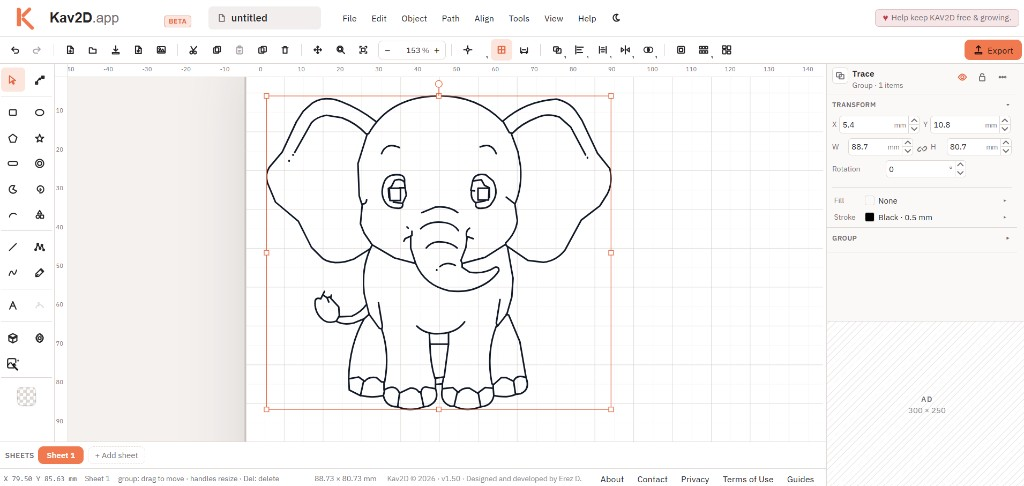
Single centreline (the default for Cut) collapses ink thinner than Stroke up to into one path. Filled blobs — a solid silhouette, a dark pupil — keep their outlines so they do not turn into stick figures. The elephant Cut example uses this.
If a colouring-page line still looks double, raise Stroke up to. If small filled details collapse, lower it.
Size, background and more settings
- Output size is the result in millimetres. The chain-link control locks aspect to the source.
- Drop background and the colour picker remove a flat backdrop. After a trace, click a palette swatch to treat that colour as extra background, then trace again.
- More settings includes processing sharpness, specks, gap closing, small holes and smooth line. Values stay stored when a control is hidden for the current mode.
Preview, then insert
- Click Trace image. Wait until the preview shows paths. Use Cancel to stop a run.
- Inspect with Result and Compare with original. Zoom with −, Fit and +. The checkerboard toggle is preview-only; it does not change the vectors.
- If you change settings, the preview is out of date. Trace again. Insert into editor stays off until the current result matches the settings.
- Insert into editor places the vectors on the sheet and closes the dialog. Back to editor closes without inserting.
After insert
The result is ordinary Kav2D objects (often grouped as Trace). Move them, edit nodes, set Line colour for cut versus engrave, nest with Optimize Layout, then export SVG or DXF.
What traces well
- Cut works best on line art and logos on a plain background, as in the elephant example.
- Mark is for colour boundary strokes. Outline around each colour keeps fill regions as separate strokes.
- Engrave is for photos and shading. Busy photographs still need cleanup after insert.
- Crop extra margin before you load the file when you can.
- Kav2D does not send the image to the cutter. Only the vectors you insert are exported.
Next: Preparing Files for Laser Cutting, SVG and DXF Import/Export, or keep drawing by hand over a photo with Tracing with a Reference Image.