

Using the KAV2D Illustrations Library
The toolbar button Illustrations opens a built-in library of drawings you can insert and edit like other vector objects. The current catalog has 300 illustrations: 292 from OpenMoji 17.0.0 and 8 native Basic Shapes. The panel itself does not show that count.
Open the library
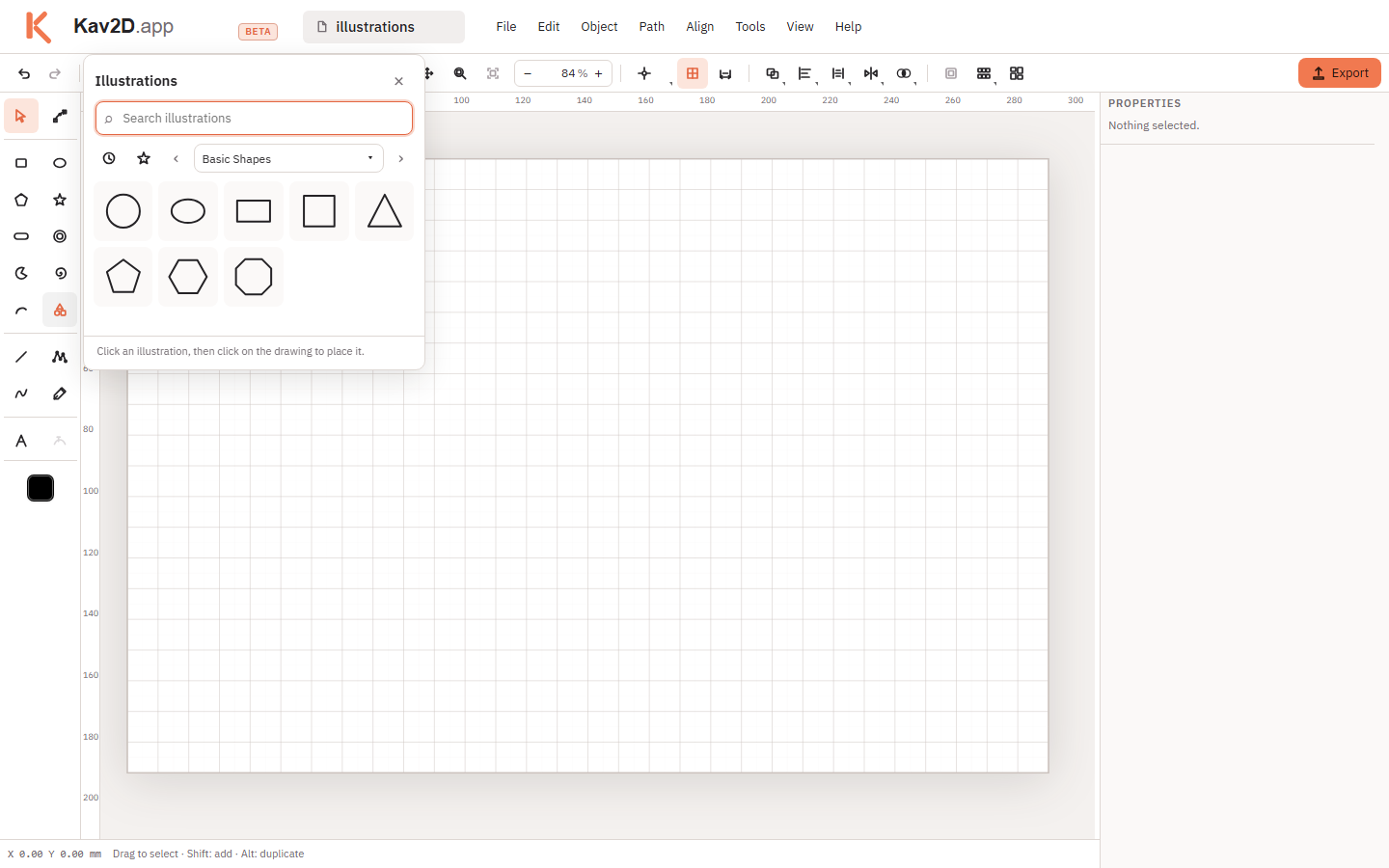
Click Illustrations on the left toolbar. The panel title is Illustrations. Close it with the × control (Close illustrations).
How drawings are organised
- Search field Search illustrations.
- Recent and Favorites shortcuts. Recent fills after you insert items (“Illustrations you insert will appear here.”).
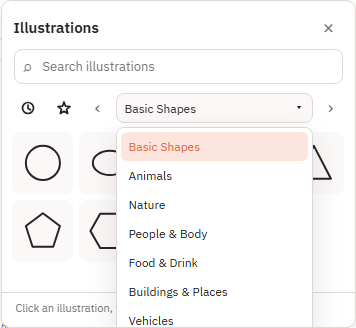
- Category combo: Basic Shapes, Animals, Nature, People & Body, Food & Drink, Buildings & Places, Vehicles, Tools, Technology, Sports & Activities, Weather, Arrows, Objects & Symbols, and All. Previous/next category buttons step through the list.
Insert a drawing
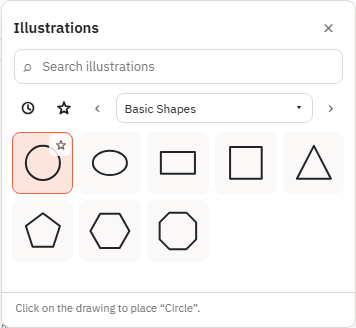
- Click a cell in the grid. The footer then says to click on the drawing to place that label.
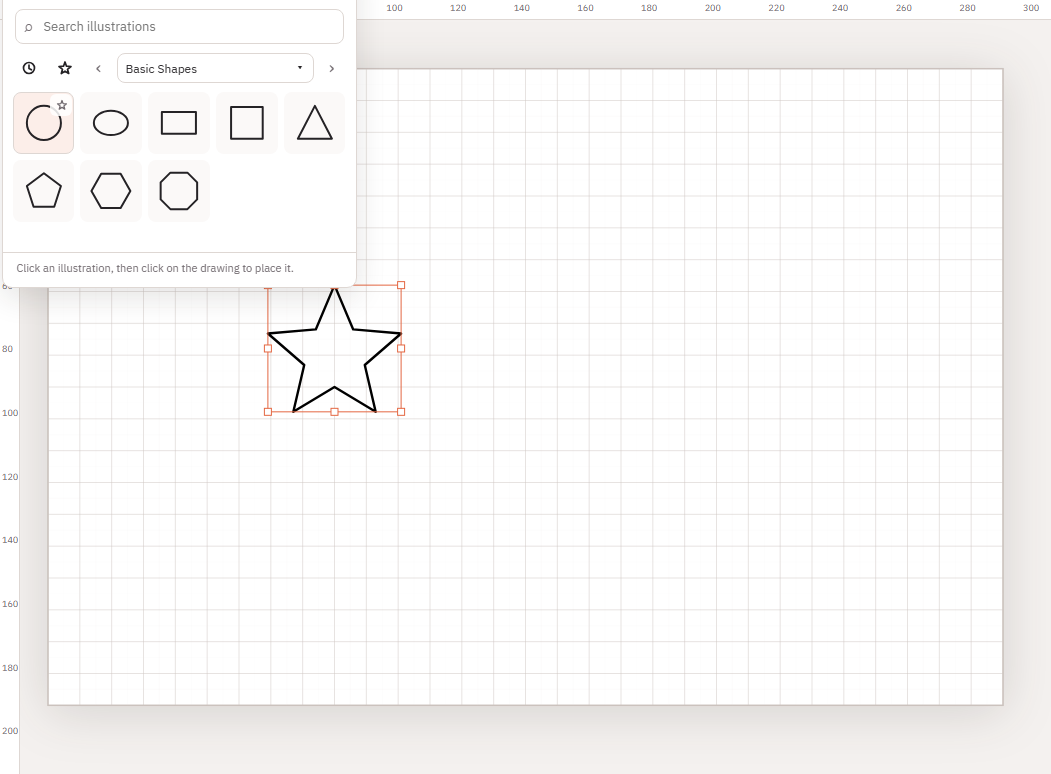
- Click the page. The history step is Insert Illustration.
- Esc cancels a pending placement.
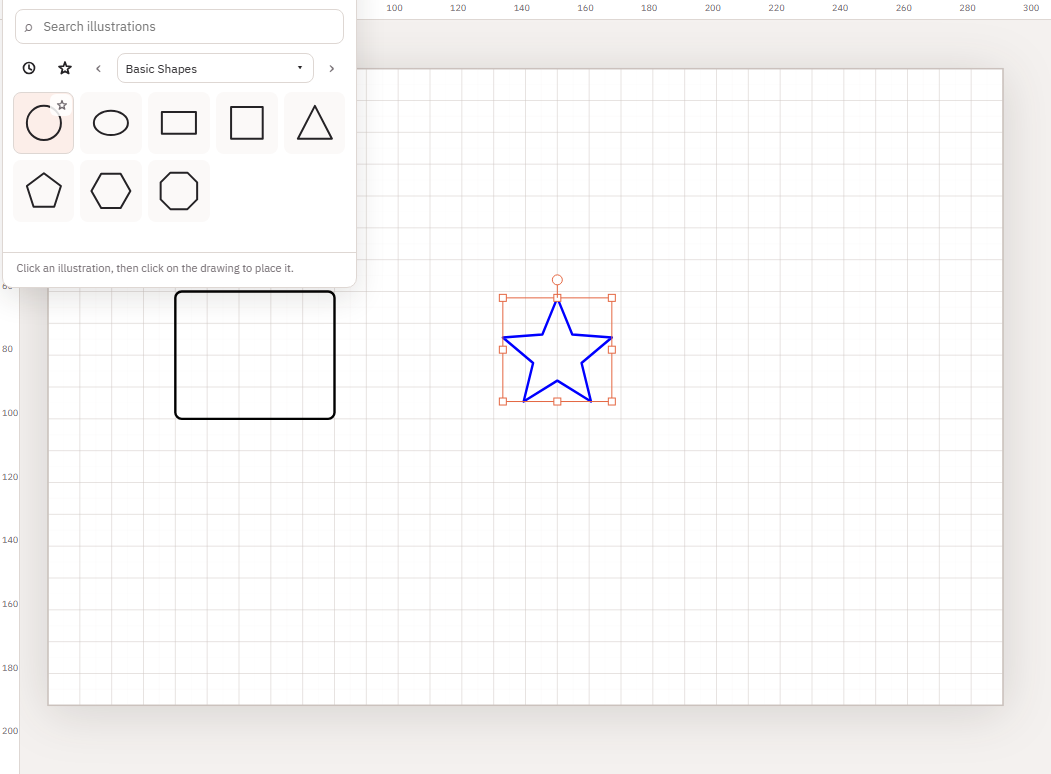
Placement uses the click point, clamped to the page. Default size is 40 mm; stroke width follows the current line colour context or 0.5 mm. OpenMoji items become a single path object. Native Basic Shapes stay as rectangle, ellipse, polygon or star — not a group.
Resize, rotate, mirror and colour
- Select the object and use the transform handles, or the inspector size fields.
- Rotate from the rotation handle or inspector angle.
- Mirror with the Mirror tools described in Mirror, Align and Distribute.
- Change Line colour like any other stroke object.
Because an OpenMoji insert is one path (not a group), you do not ungroup it. Use node editing if you need to change individual contours. Native shapes keep their usual geometry type.
Combine with text, shapes and Boolean
Add text and borders as separate objects. Closed illustration paths can be Boolean subjects with other closed shapes — see Boolean Operations. Open or very detailed paths may need cleanup first. Groups are not Boolean subjects until you ungroup; that usually does not apply to a single inserted illustration.
Prepare for cutting or engraving
Continue with Preparing Files for Laser Cutting.
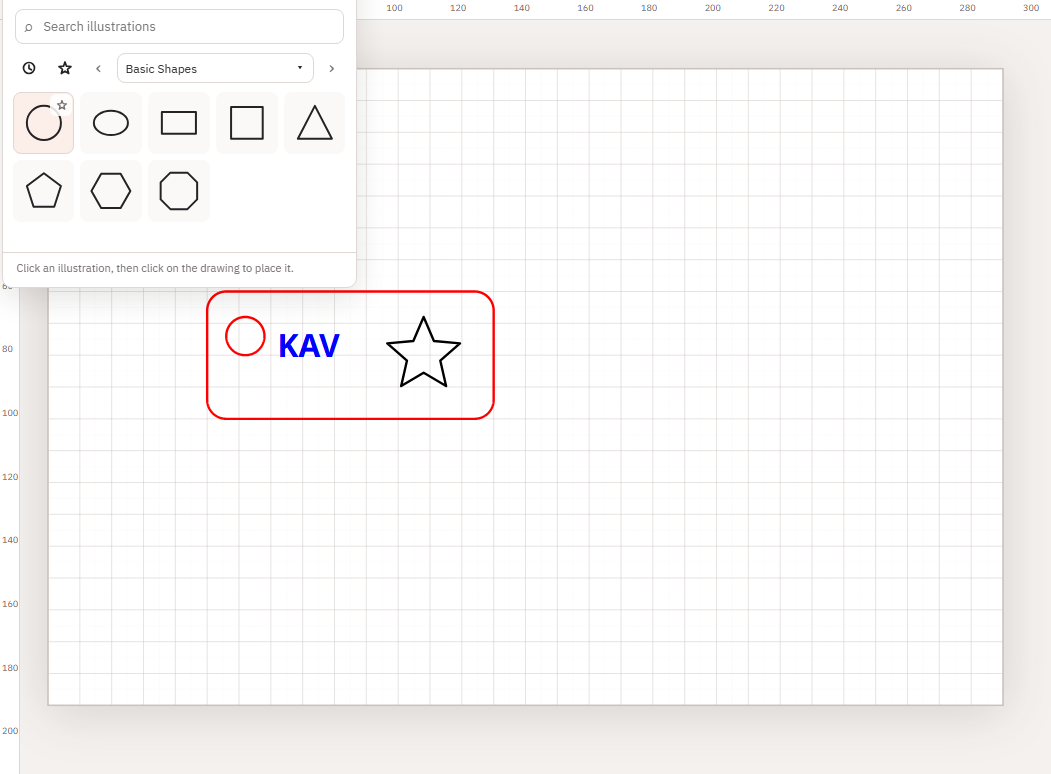
Example: a small tag
- Draw a rounded rectangle for the tag body and subtract a hanging hole.
- Open Illustrations, search or pick a category, insert a drawing, and scale it to fit.
- Add text with the Text tool. Set Line colour for cut and fill or stroke for engrave.
- Check tiny loops and loose pieces. Export SVG or DXF.
Attribution
OpenMoji illustrations are used under CC BY-SA 4.0. The About dialog states “Illustrations by OpenMoji — CC BY-SA 4.0”. Keep that attribution when you share or sell work that includes those drawings. Native Basic Shapes are part of Kav2D.