

Mirror, Align and Distribute
Commands that move or flip existing objects. They do not create copies unless you Duplicate first.
Mirror
The toolbar Mirror palette offers Mirror horizontally and Mirror vertically. Both flip around the centre of the current selection. Object has the same two commands plus Mirror… for more control.
- Mirror horizontally flips left and right (scale X × −1) around a vertical axis through the selection centre.
- Mirror vertically flips top and bottom (scale Y × −1) around a horizontal axis through the selection centre.
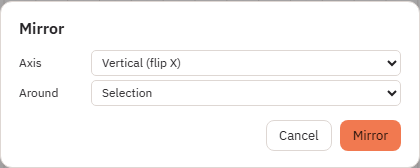
In Object → Mirror… you set:
- Axis: Vertical (flip X) or Horizontal (flip Y) — the same two directions as the toolbar, with those dialog labels.
- Around: Object (first editable object’s box), Selection, Page (page centre) or Chosen axis with a Position.
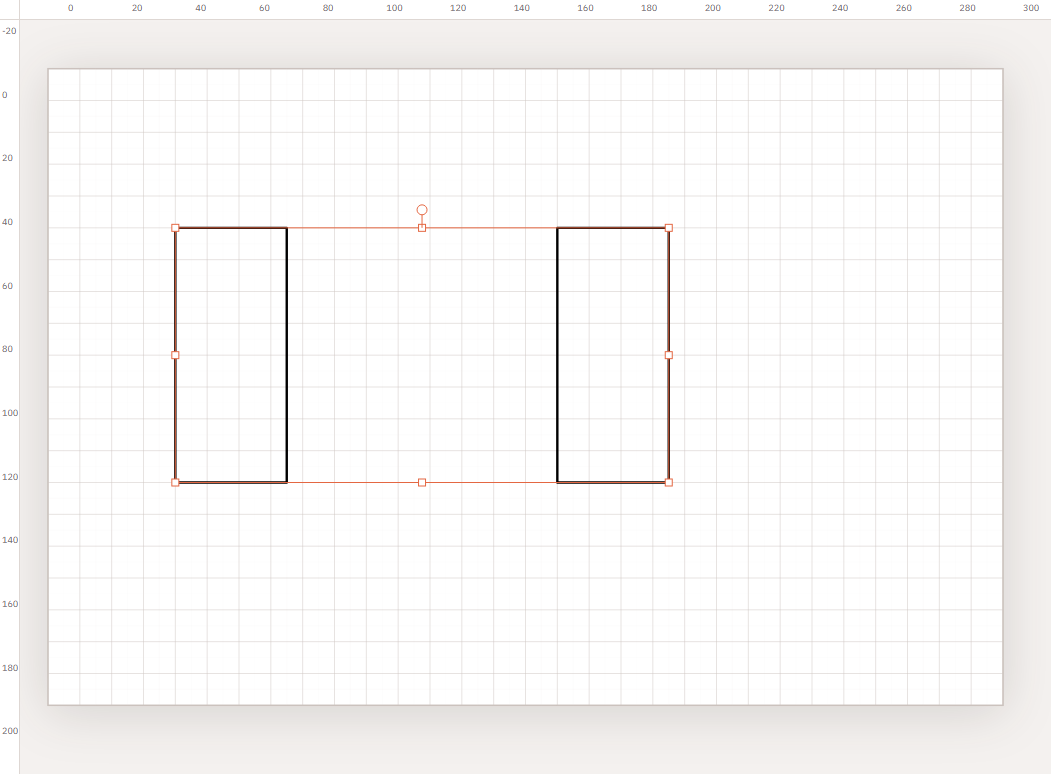
Left and right pair
Mirror transforms in place. It does not add a second part. For a matching left and right piece:
- Select the original part.
- Edit → Duplicate (Ctrl+D).
- Leave only the copy selected (click empty canvas, then the copy), or duplicate in place and keep the copy selected.
- Open Mirror…, set Around to Page (or Chosen axis on your centreline), and apply Vertical (flip X).
If both original and copy are selected, toolbar mirror flips the whole selection around its combined box — usually not what you want for a pair.
Align
Select two or more objects. The Align menu lists Left, Horizontal centre, Right, Top, Vertical centre and Bottom. The toolbar palette uses the same actions with names such as Align left and Align horizontal centre.
These menu and toolbar buttons pass selection as the reference: every object moves to match the bounding box of the whole selection. That is not a “key object” mode. (The editor has an internal key-object align, but these controls use the selection box.)
- Left / Right / Top / Bottom line up that edge of each object with the same edge of the selection box. Objects slide; gaps between them are not equalised (use Distribute for spacing).
- Horizontal centre and Vertical centre line up centres to the selection box centre.
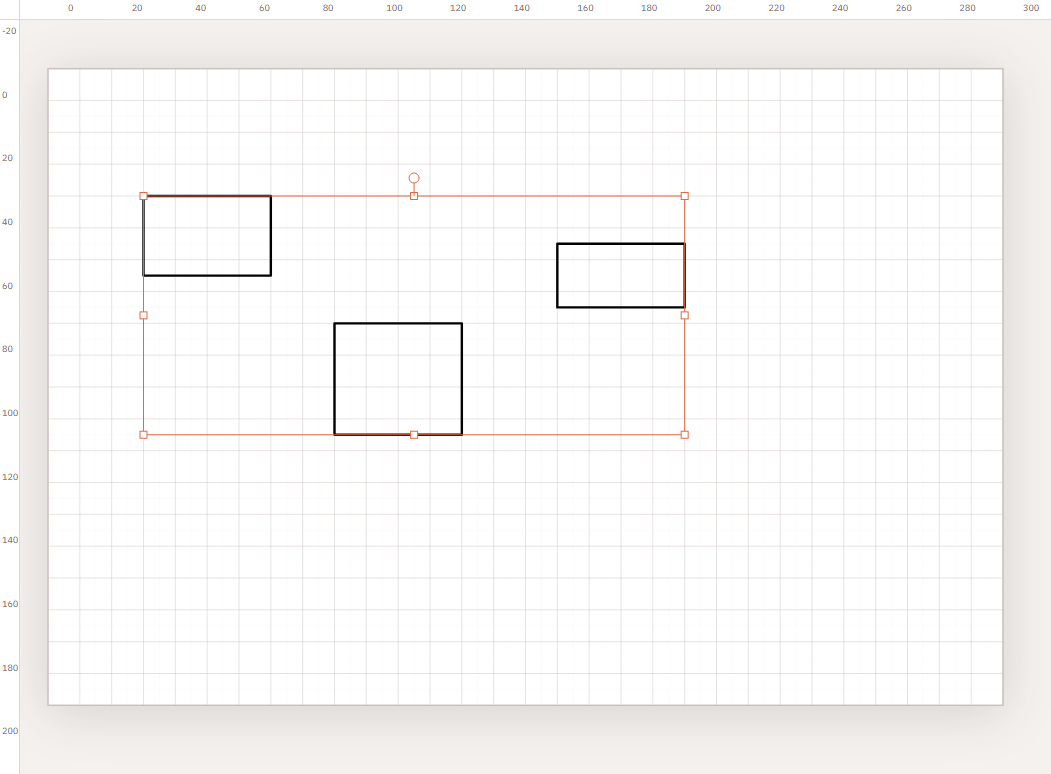
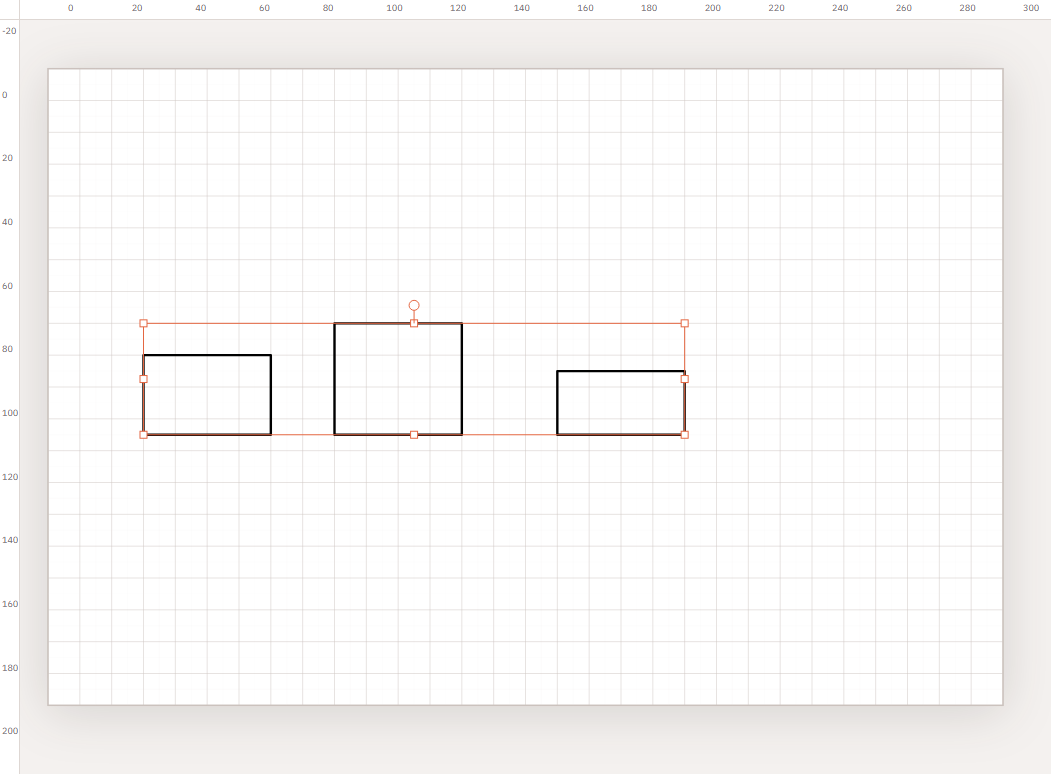
Shift-click to add to a selection, or drag a window. Locked objects are skipped and Kav2D may tell you to unlock them.
Distribute
Select at least three objects. Options:
- Distribute H centres / toolbar Distribute horizontally — even spacing between object centres, from the leftmost centre to the rightmost. Outer objects stay put.
- Distribute V centres / Distribute vertically — same idea on Y.
- Equal gaps H / Equal horizontal gaps — even empty space between bounding boxes on X (not the same as equal centres if widths differ).
- Equal gaps V / Equal vertical gaps — even gaps on Y.
- Align → Exact gap… — type a gap distance instead of using the span of the selection.
Example: five circles in a row
- Choose Ellipse and draw a circle. Duplicate it four times and drag the copies into a rough row (uneven gaps are fine).
- Drag a selection around all five, or click then Shift-click the rest.
- Open Align and choose Vertical centre so they share one horizontal midline.
- Open Distribute and choose Equal horizontal gaps (or Distribute horizontally if you care about centres).
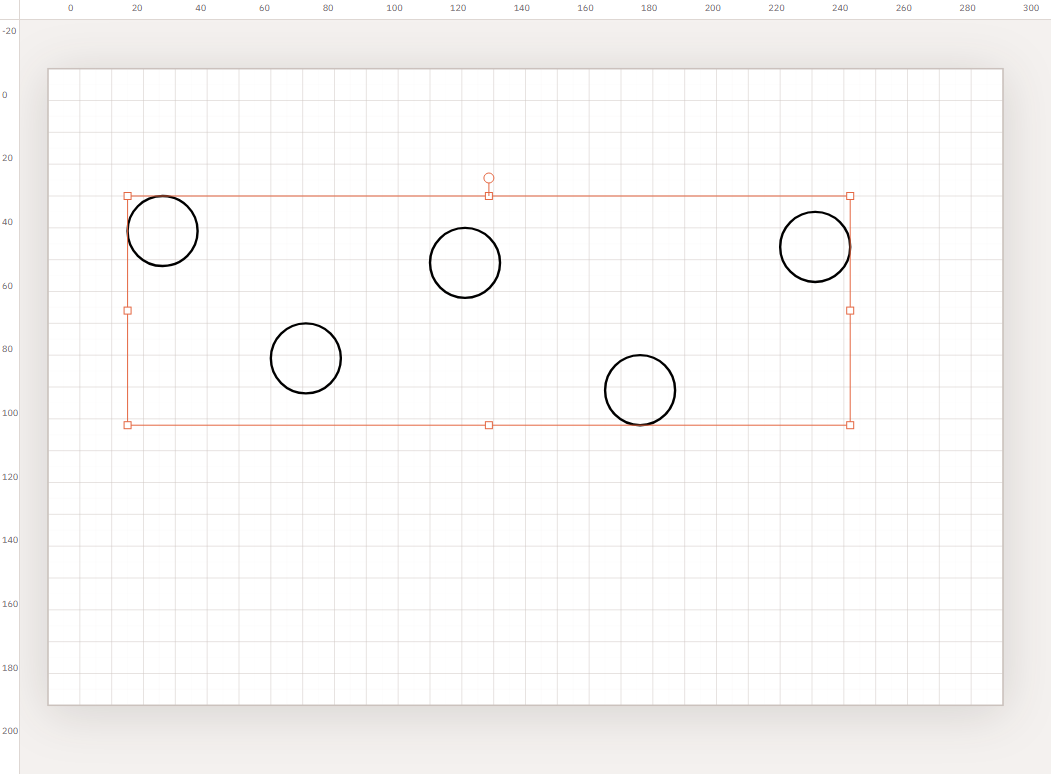
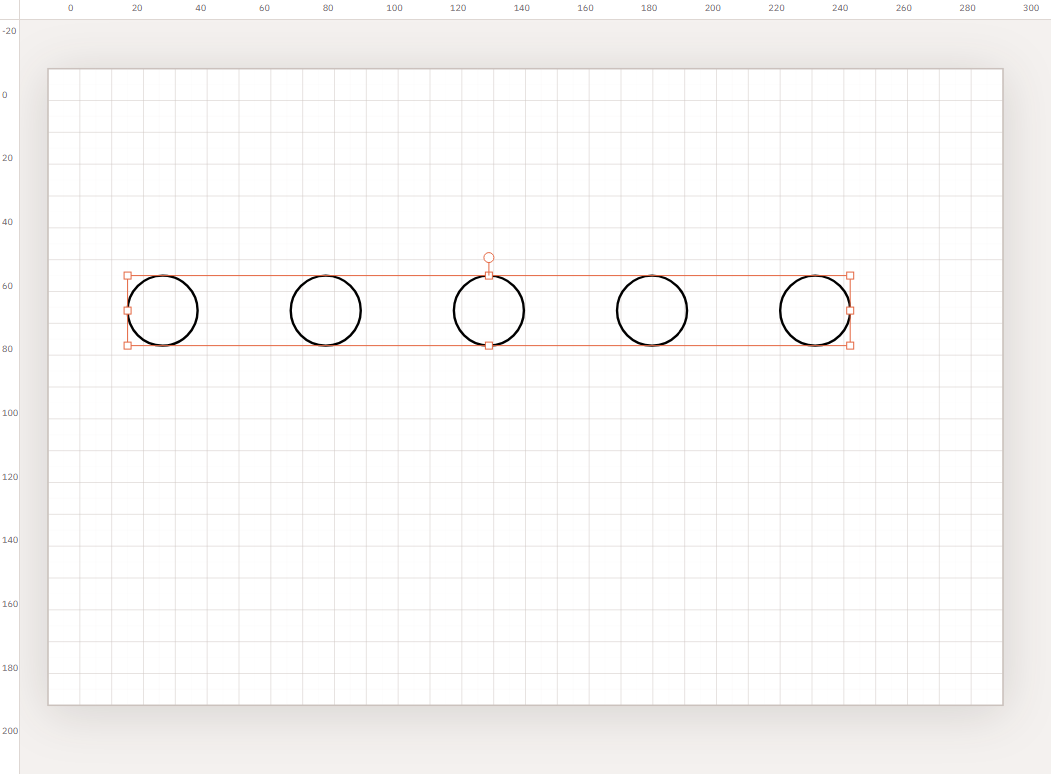
Align and Distribute line objects up; they do not search for a tighter material packing. For that, use Optimize Layout.