

Creating Gears in KAV2D
Gear Generator builds involute gear outlines as ordinary vector objects. The gears are not engineering-certified parts. Test fit in the intended material and machine.
Open the generator
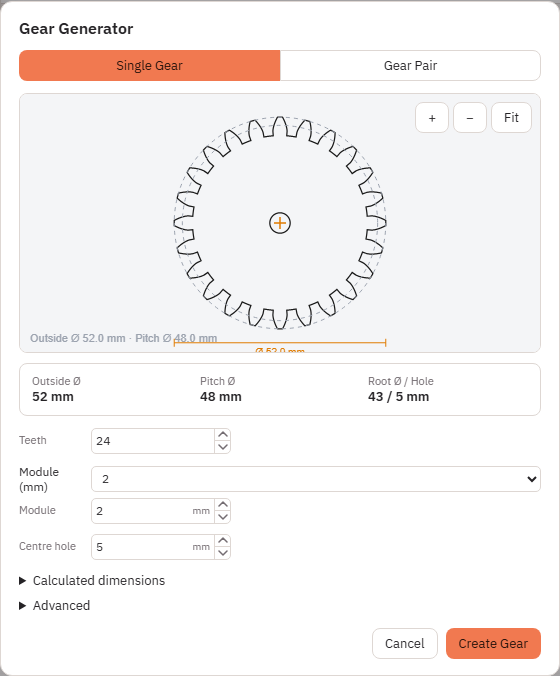
Choose Tools → Gear Generator…. The dialog title is Gear Generator, or Edit Gear when a single generated gear is selected.
Single Gear and Gear Pair
Two tabs: Single Gear and Gear Pair. Edit Gear always uses the single-gear fields for the selected object.
- Create Gear inserts one gear at the viewport centre (history: Create Gear).
- Create Pair inserts two gears spaced by the calculated centre distance (history: Create Gear Pair).
- Apply updates a selected gear (history: Edit Gear).
- Cancel closes without inserting.
Available controls
Single Gear (and Edit Gear):
- Teeth — integer, minimum 8.
- Module (mm) — presets 0.5, 0.8, 1, 1.25, 1.5, 2, 2.5, 3, 4, 5, or Custom / Module / Custom module (minimum 0.5 mm). Module sets tooth size. Meshing gears must use the same module.
- Centre hole — shaft hole diameter (0 allowed).
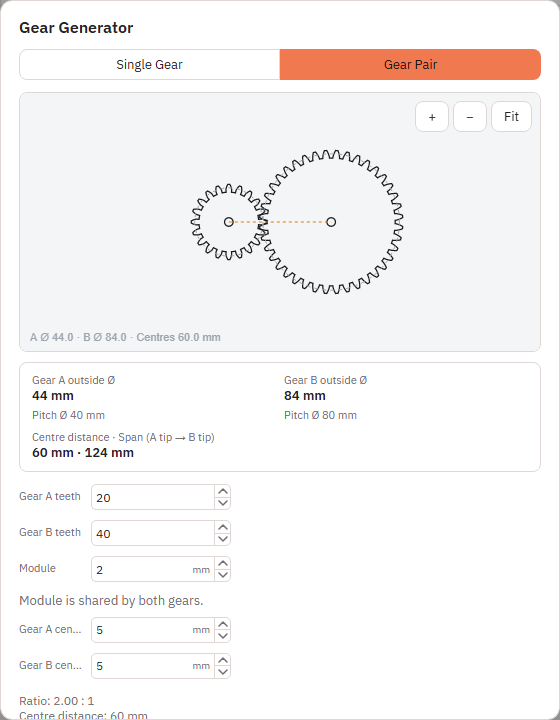
Gear Pair adds:
- Gear A teeth and Gear B teeth (each minimum 8).
- Shared Module (“Module is shared by both gears.”).
- Gear A centre hole and Gear B centre hole.
- Calculated Ratio, Centre distance, pitch diameters, and “Opposite rotation”.
- Preview Play / Pause / Reset. Drag gear A in the preview to rotate. Animation speed is under Advanced.
Size summary (always visible): Outside Ø, Pitch Ø, Root Ø / Hole for a single gear; pair shows both outside diameters and Centre distance · Span.
Calculated dimensions (details): Outside Ø, Pitch Ø, Root Ø, Circular pitch, Est. tip width.
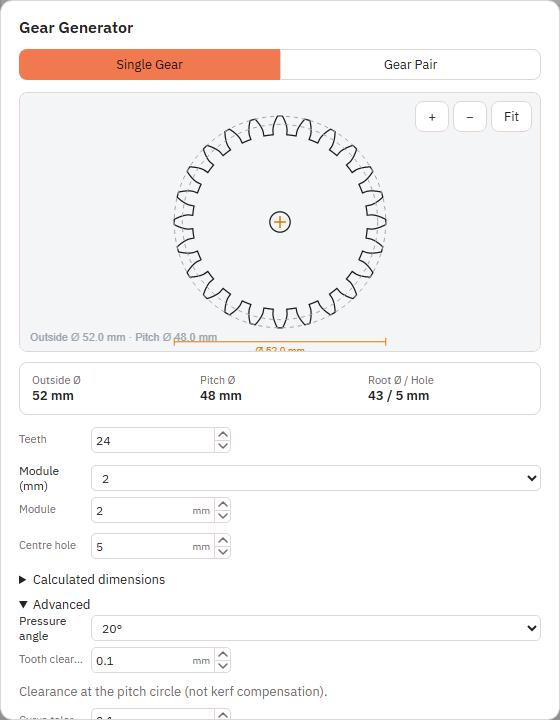
Advanced:
- Pressure angle: 14.5°, 20°, or 25°.
- Tooth clearance — clearance at the pitch circle (not kerf compensation). Help text: make a small test cut when dimensional fit is important.
- Curve tolerance — how finely the involute is polygonalised.
- Show construction geometry (preview only) — pitch/construction circles in the dialog preview, not added to the document.
Preview zoom: +, −, Fit. Invalid values keep the last valid preview and highlight the field.
There is no kerf, laser compensation, or backlash field beyond Tooth clearance.
How pair dimensions are calculated
Both gears share Module and pressure angle. Centre distance is derived from the two tooth counts and the module (standard pitch-diameter sum / 2). The two outlines are inserted left and right of the viewport centre, separated by that distance, and linked as a pair in object metadata.
After insert
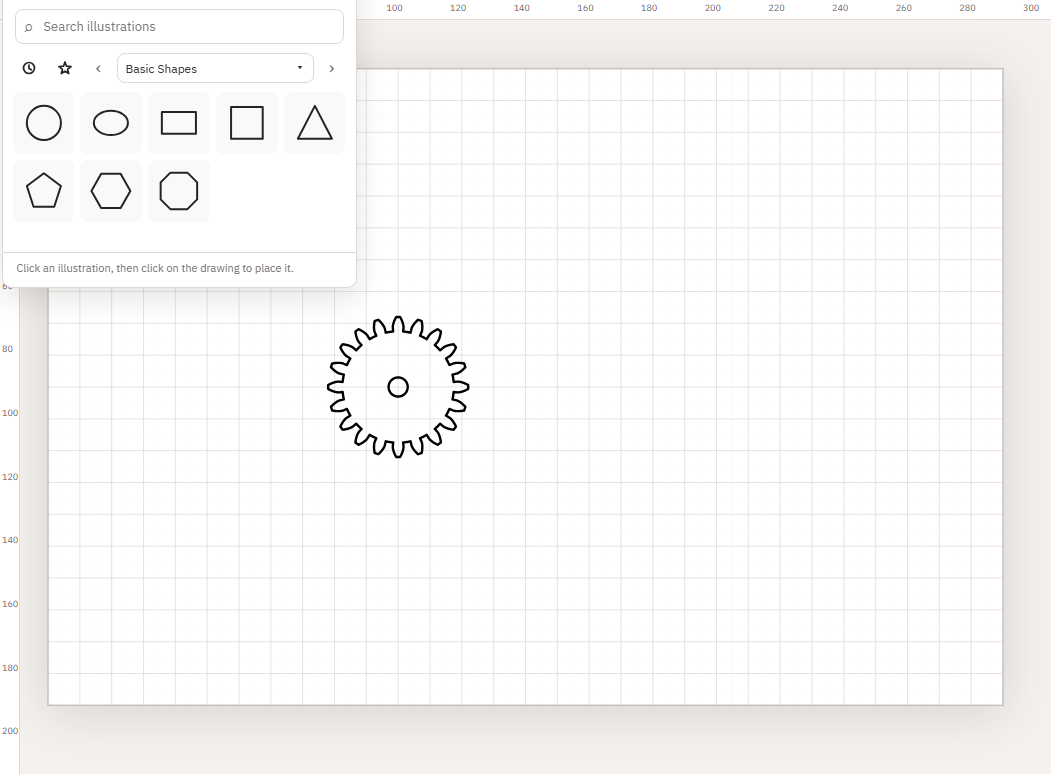
Each gear is a closed vector object (outer contour plus hole). You can move it, change Line colour, and edit nodes. Selecting one generated gear and reopening Gear Generator lets you Apply parameter changes as Edit Gear.
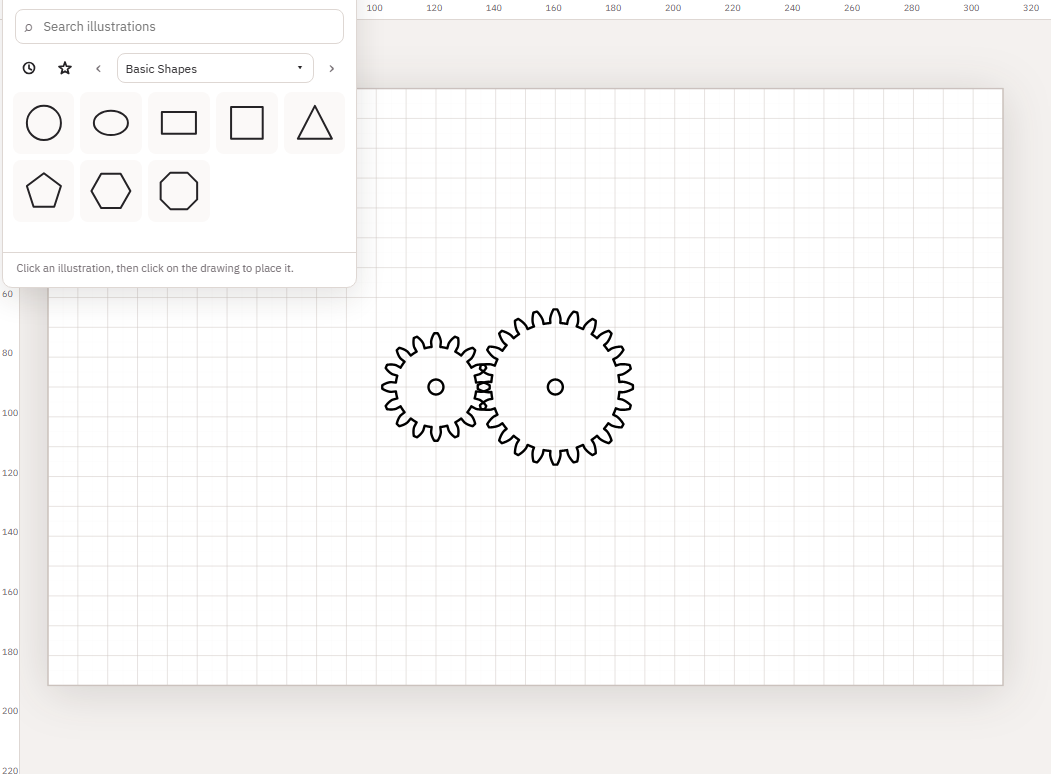
Why arbitrary scaling breaks the mesh
Tooth size comes from Module and Teeth. Scaling one gear in the canvas (or only one of a pair) changes pitch diameter without updating the other gear. If two gears must mesh, change Teeth / Module in Gear Generator instead of stretching with handles, or scale both gears by the same factor only if you accept that the centre distance and shaft holes also change.
Colour and export
Set Line colour for cut versus engrave, then Export SVG or Export DXF. Closed outlines are required for a through-cut.
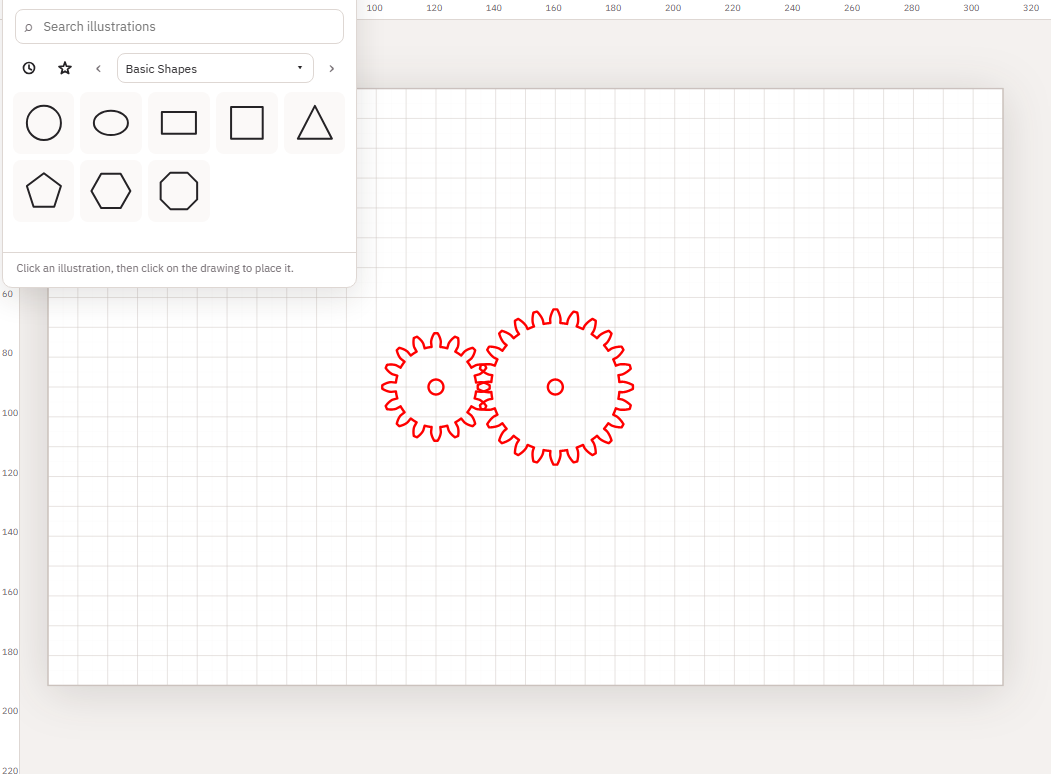
Examples
Decorative single gear
- Open Gear Generator → Single Gear.
- Pick Teeth and Module for the size you want. Set Centre hole if you need a mounting hole.
- Create Gear. Recolour and optionally add a border or text. Do not treat it as a rated machine part.
Compatible pair for a test cut
- Open Gear Pair. Set Gear A teeth, Gear B teeth, and a shared Module.
- Set both centre holes to your shaft size. Review Tooth clearance under Advanced.
- Play the preview to see opposite rotation, then Create Pair.
- Export and cut a small test in the real material before a finished mechanism.